No silent distortion
Cover mode preserves aspect ratio and crops overflow. Fit mode preserves the entire image and pads unused space. Neither mode stretches faces or text.

Prepare a photo for an Instagram post, Facebook placement or YouTube thumbnail or banner. Check the crop before saving.

Browser image decoding and the Canvas 2D API handle supported pixels locally.
The tool loads its interface and processing files from the site. This workflow handles the contents you select or enter in the browser.
Limits are safeguards, not a guarantee every file below them will process. Complex files and device memory can require a smaller input.
Preset data is structured and date/source noted.
Preset source:
Cover mode preserves aspect ratio and crops overflow. Fit mode preserves the entire image and pads unused space. Neither mode stretches faces or text.
Platform dimensions live in one JavaScript preset object with a label, dimensions and source note instead of being scattered through HTML.
No. Cover crops to fill; fit preserves the whole image with padding.
No. Platforms change recommendations, so presets include source context and should be reviewed periodically.
Yes. Choose Custom and enter your own width and height.
QUICK ANSWER & TOOL GUIDE
Choose an image and a supported social-media size preset, then inspect the crop and exported pixel dimensions before uploading. Platform guidance can change and some feeds crop the preview independently of the uploaded file.
Important: Platforms can change preferred sizes and may crop uploads.
Need help with a file or download? Read the image tool help center.

Prepare a crop for each placement because their shapes differ. Check the upload preview and keep faces or text inside the visible area.
Choose separate crop presets for the feed and thumbnail. Check the upload preview on the actual platform.
Start with one master that has useful space on each side. Wide, tall, and square placements can reveal different portions of the same picture. Make separate crops when a label or face cannot fit comfortably in all of them. Keep the original as the editing source.
Treat a preset as a starting shape. Placement rules can change, and the look may differ between a full image and a card shown in a feed. Verify important visual details in the destination preview, including how a caption or layout around the image affects what is visible.
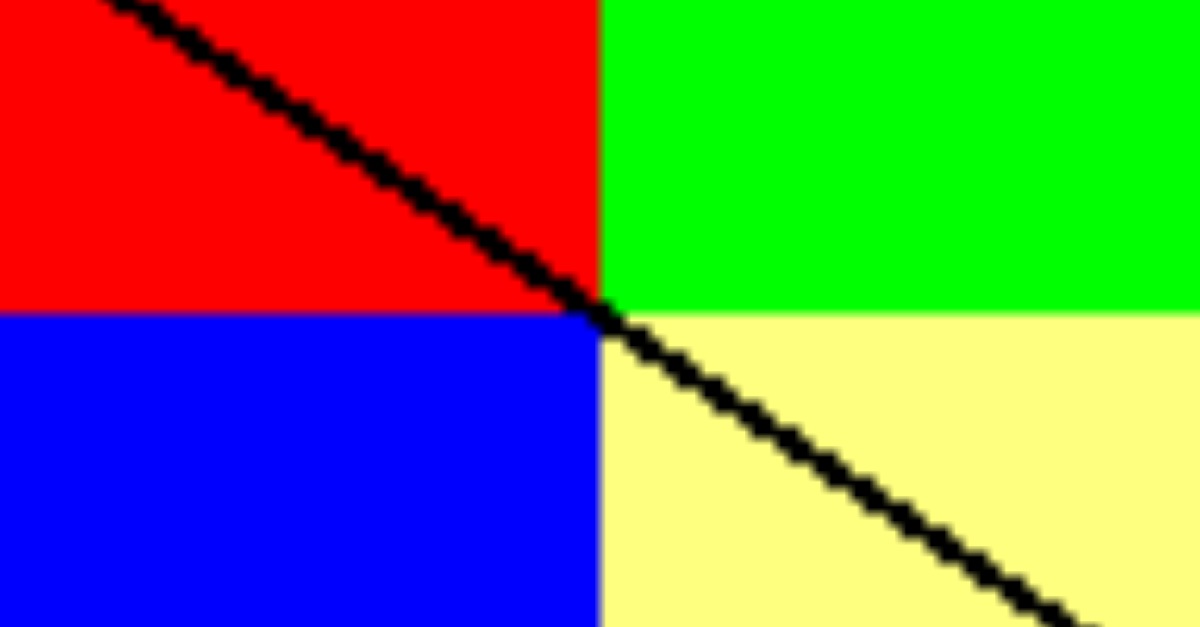
This preset exported a 1,200 × 627 JPG in the test. Use a suitable source size to retain detail when enlarging.
Open the sample PNG, choose the LinkedIn Page link image preset and Crop to fill, then select Export JPG.
Recorded on using Chromium 151.0.7922.34 on local WordPress 7.1.4. Each result describes the sample and settings shown. File size and visual quality can vary by image, settings and browser encoder.
Feed, profile grid, story and banner previews use different shapes. Choose the preset for the actual placement and keep faces or text inside the preview. Check the platform upload preview before posting.