
Quick answer
Make a JPEG copy when an upload form or editor needs it. Keep the HEIC original and compare orientation, color and metadata on the device where you will use the copy. MAGODUCK processes the primary supported still image locally in the browser.
Examples checked November 11, 2026.
Evidence and accountability: read our testing methodology, contributor profile and editorial and corrections policy. The dated examples are specific tests, not a guarantee for every file or device.
Why does my iPhone save photos as HEIC?
Apple uses High Efficiency image workflows because HEIF/HEVC can store high-quality photos more efficiently than older JPEG workflows. Apple currently recommends High Efficiency capture on supported devices, while also offering a Most Compatible option for people who regularly need JPEG/H.264 files.
The practical point is simple: HEIC is not a problem by itself. Convert only when your destination cannot use it or when your workflow explicitly needs a JPEG copy.
What is HEIC, and is it the same as HEIF?
HEIF is the broader High Efficiency Image File Format container concept. Apple developer documentation distinguishes public.heif from public.heic: HEIC is the HEIF file type used for HEVC-compressed images. HEVC/H.265 is the coding technology; HEIF is the container family; HEIC is the HEVC-based image file type.
That distinction matters because a HEIF container can hold more than a single flat image: metadata, auxiliary images, sequences, alpha and other properties may be present. A normal JPEG export is a much simpler derivative.
Why convert HEIC to JPG?
JPEG remains extremely broadly accepted by upload forms, editors, messaging systems and older workflows. HEIC support is less uniform. Current browser support is especially uneven: Safari supports HEIC in modern versions, while Chrome and Firefox do not provide general HEIC image support in the same way. Windows can support HEIF through Microsoft codecs/extensions, and Android platform support exists on modern versions but can still depend on the device and application.
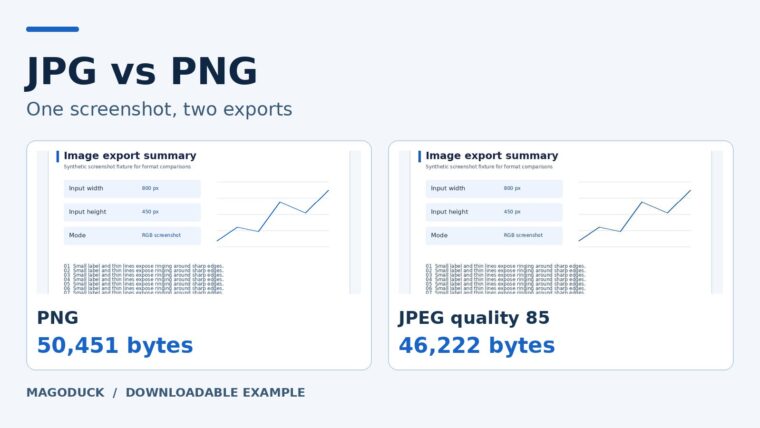
So the best reason to convert is compatibility, not an assumption that JPG is always smaller or better.
Does HEIC to JPG reduce quality?
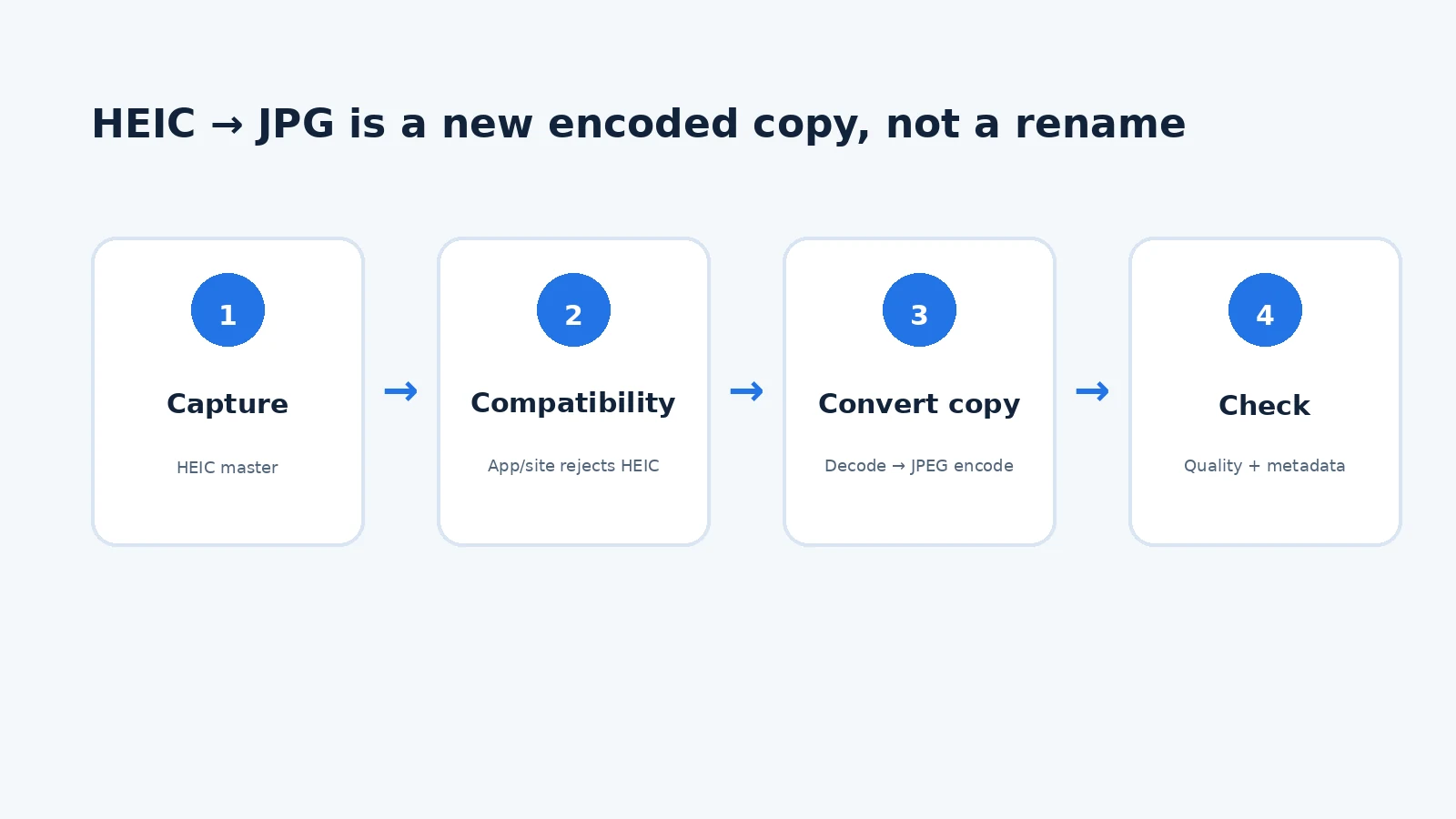
Usually, yes in the strict technical sense. The HEIC image must be decoded to pixels and then encoded as JPEG. Standard JPEG encoding is lossy. A high-quality export may look essentially unchanged at normal viewing size, but it is still a new encoded file.
A JPEG copy can keep the same width and height while changing decoded pixels and metadata. Compare the original and copy at the intended display size.
Downloadable browser conversion example
Try this synthetic file in the HEIC to JPG converter. In the Chromium test, the bundled decoder read the primary still image and the browser saved a JPEG.
| File | Dimensions | File size |
|---|---|---|
| HEIC input | 160 × 96 | 1,064 bytes |
| JPEG output | 160 × 96 | 1,256 bytes |
The test covers this one synthetic still. It does not measure HDR fidelity, metadata retention or every HEIF container structure. Preview your own file before discarding anything.
What happens to orientation, metadata and GPS?
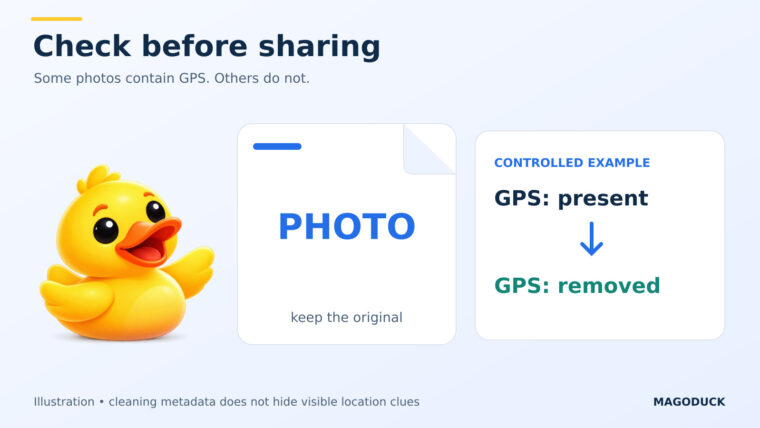
Do not assume a converter always strips metadata, and do not assume it always preserves it. Behavior depends on the decoder/encoder pipeline.
Compare whether portrait and landscape photos open upright after conversion. Orientation can be represented by container transforms or metadata, and tools can handle them differently.
The MAGODUCK browser path writes a JPEG from decoded pixels. If EXIF, GPS or capture time matters, inspect both copies before sharing or archiving. Save the original for metadata and future editing.
What about transparency, HDR and extra HEIF data?
Standard JPEG has no alpha channel. MAGODUCK renders transparent regions against a background for JPEG output. If transparency is essential, keep the original or use a suitable lossless format.
Use the original when HDR, wide gamut, a Live Photo video, depth data or other auxiliary images matter. The downloadable example is an ordinary still conversion.
How to change future iPhone photos to JPEG
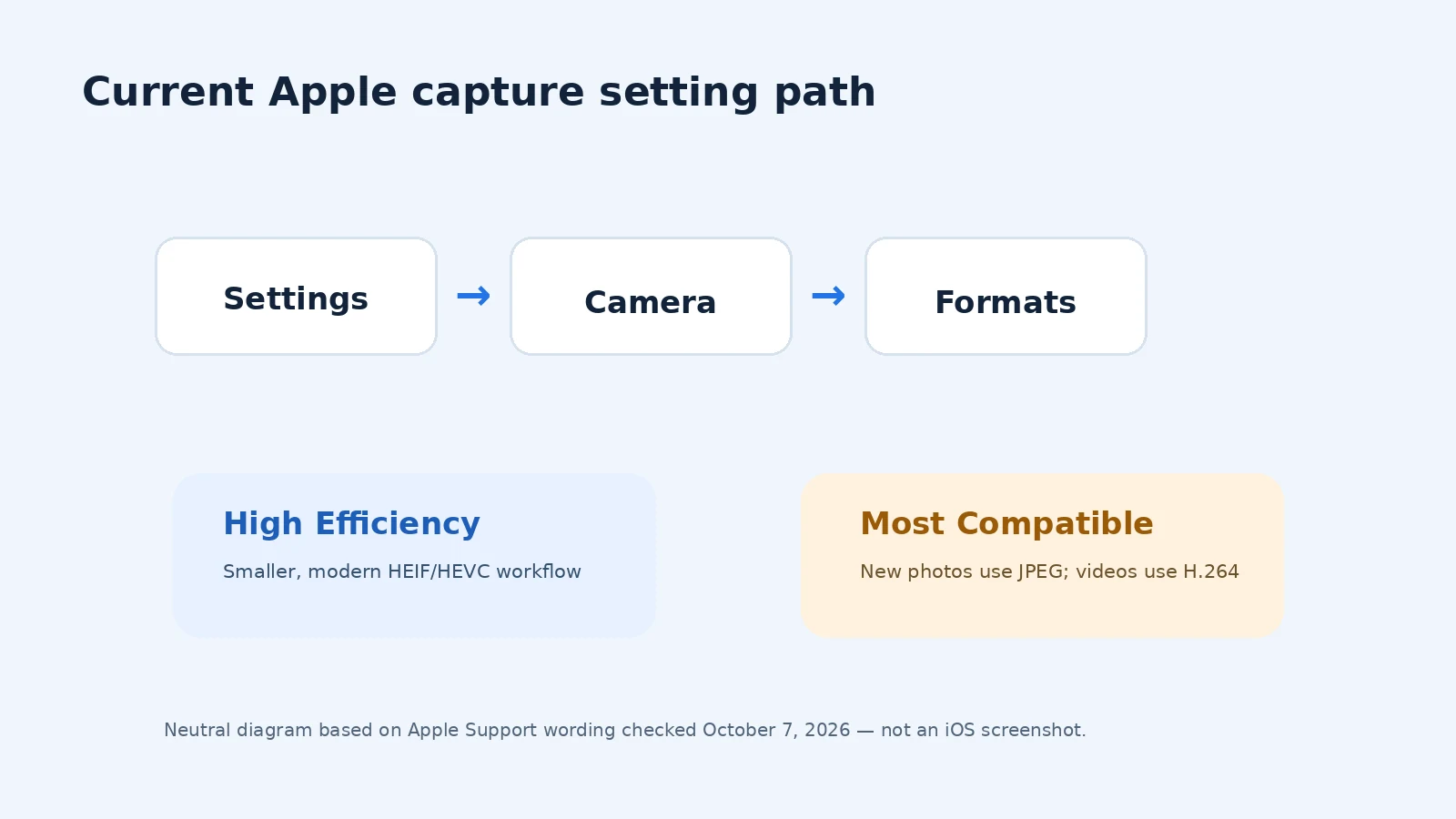
Apple’s current support guidance uses this path on supported iPhone/iPad models:
Settings → Camera → Formats → Most Compatible
With Most Compatible selected, new photos use JPEG and new videos use H.264. To return to the space-saving formats, choose High Efficiency. You do not need to change this permanently if your normal workflow already handles HEIC well.
What happens when you share or import HEIC?
Apple says some AirDrop, Messages or email workflows may automatically send a more compatible format when the receiving device does not support HEIF/HEVC. Apple also notes that USB imports may convert media. If you want to avoid conversion during supported transfer workflows, the current setting is under Settings → Apps → Photos → Keep Originals.
That behavior is conditional, so do not rely on auto-conversion for every upload, app or transfer path.
How to convert HEIC to JPG safely
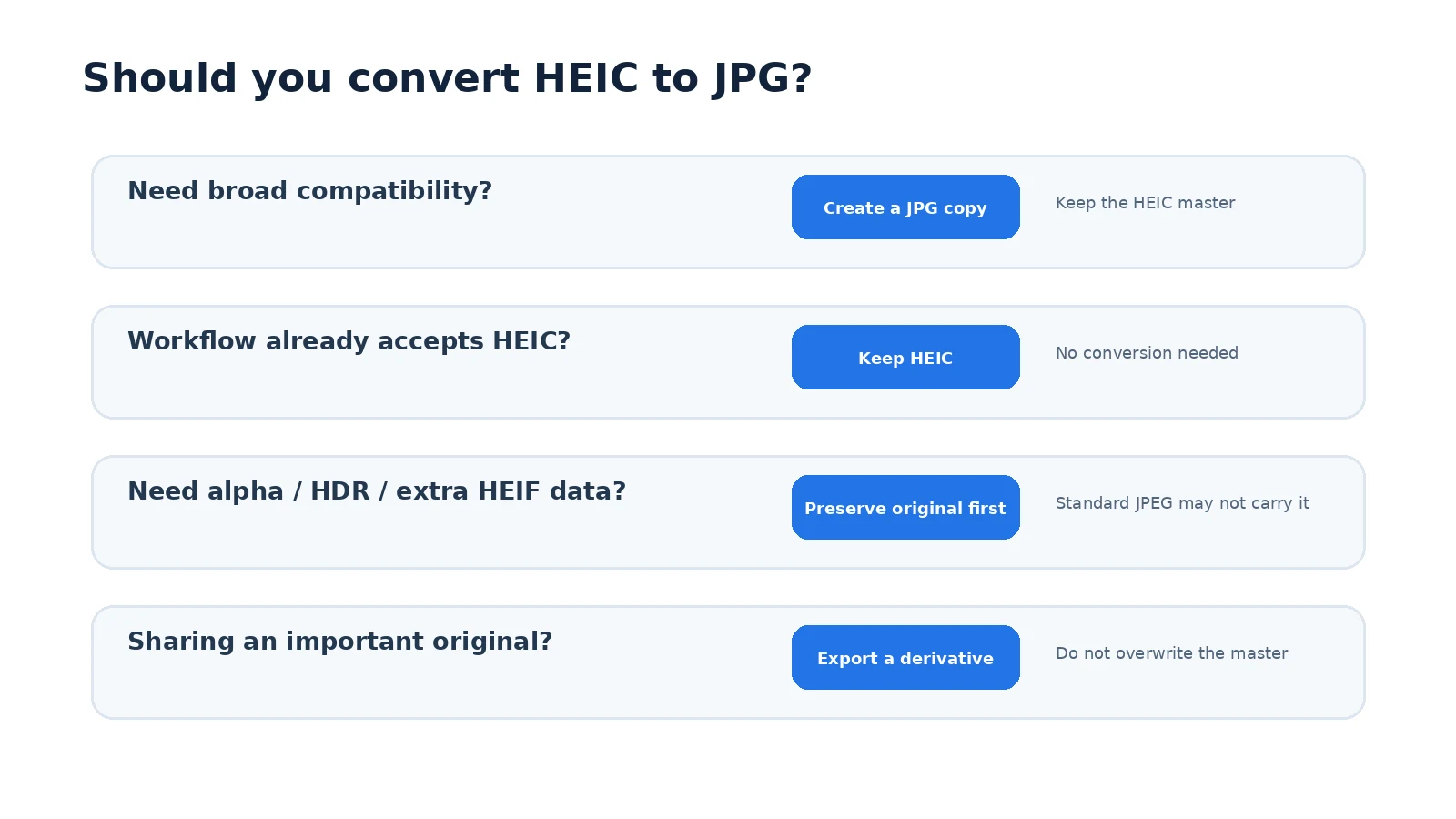
- Keep the HEIC original. Treat JPEG as a derivative copy.
- Convert only when compatibility requires it. If the destination already accepts HEIC, conversion may be unnecessary.
- Use a sensible JPEG quality. Higher quality usually means a larger file, but encoder scales are implementation-specific.
- Check orientation and dimensions. Make sure portrait images are not rotated or mirrored.
- Inspect metadata. If location or camera data matters, verify the actual output instead of assuming.
- Be cautious with HDR, alpha and auxiliary data. Standard JPEG may not preserve capabilities present in a HEIF container.
On a Mac, Apple documents a straightforward manual path: open an HEIF image in Photos or Preview, choose File → Export, then select JPEG or PNG.
How to convert HEIC photos to JPG on a Windows PC
- Save the original HEIC photo to your PC and open the HEIC to JPG converter in your browser.
- Select the HEIC still and wait for its preview. Choose your JPEG quality and convert.
- Download the JPG and open it to check orientation and detail. Keep the original if you need HEIC metadata or HDR data.
The browser workflow uses a bundled decoder for supported HEIC stills. If you open the original in Windows Photos, the app may ask for HEIF and HEVC extensions. See Microsoft’s Windows Photos guidance.
HEIC vs JPG at a glance
| Topic | HEIC | JPG |
|---|---|---|
| Typical role | Efficient modern photo container/workflow | Broadly compatible photo exchange format |
| Compression | Commonly HEVC-based for .heic | Lossy JPEG encoding |
| Transparency | Can be represented in HEIF workflows | No alpha channel |
| Metadata/container capability | Can carry richer container structures and auxiliary data | Simpler single-image workflow with EXIF/XMP profiles |
| Browser compatibility | Uneven | Extremely broad |
| Best decision | Keep as master when your workflow supports it | Create a copy when compatibility is the priority |
When should you convert?
About MAGODUCK’s HEIC to JPG tool
Use a supported HEIC/HEIF still file, wait for the preview, choose quality and download the JPEG. If a file fails to decode, try exporting a JPEG directly from the original app or device.
HEIC to JPG FAQ
What if a photo I downloaded on my iPhone ends in .avif?
Use an AVIF converter for a supported AVIF still. Use an HEIC converter for a supported HEIC camera photo. Check the file type if the extension is missing.
What is a HEIC file?
A HEIC file is a HEIF image file whose image data is HEVC-compressed in Apple’s file-type terminology.
Why does iPhone use HEIC?
Apple uses high-efficiency formats to reduce storage needs while maintaining high visual quality and supporting modern imaging workflows.
Does HEIC to JPG reduce quality?
JPEG re-encoding is normally lossy, so the output is not mathematically identical even when it looks very similar.
Will conversion remove metadata or location?
Not necessarily. Converter behavior varies. Our libheif reference test preserved EXIF, and a controlled fixture with synthetic GPS coordinates retained them in the JPEG output. That is not a promise about every converter or the future MAGODUCK tool.
Can JPG be larger than HEIC?
Yes. In our controlled fixture every JPEG export was larger than the HEIC source. Real photos can behave differently.
Should I use High Efficiency or Most Compatible?
Keep High Efficiency if your workflow accepts HEIC. Use Most Compatible when repeated compatibility problems justify capturing new photos as JPEG.
Test details
The sample was run through the MAGODUCK tool in local WordPress using Chromium 156.0.8078.79. The tool measurements record sizes and SHA-256 hashes.
For reference, the earlier reported tables (CSV) record the previous article figures. The original inputs for those figures are unavailable. The examples above use the downloadable files shown here.
Sources
Editorial transparency: This guide was drafted with AI assistance. The bundled HEIC-to-JPG example is one small synthetic still, not a test of every iPhone file, HEIF feature or metadata field. Keep your original, check the exported copy, and treat device-specific support as unverified until you test your own file.
The practical rule
Keep HEIC when it works. Make a JPG copy when compatibility requires it. Preserve important originals before converting, and verify orientation, metadata and appearance on the actual output.
MAGODUCK is not affiliated with or endorsed by Apple.