MAGODUCK

Category: Image Formats

  • JPG vs PNG for Photos, Screenshots and Uploads

    JPG vs PNG for Photos, Screenshots and Uploads

    Quick answer

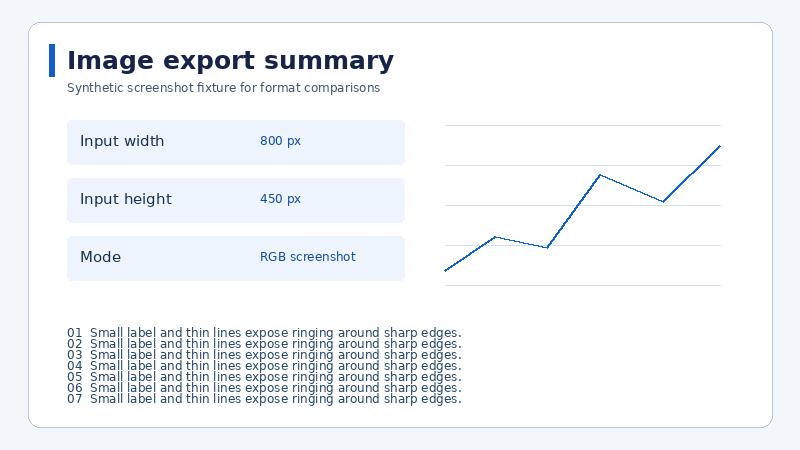
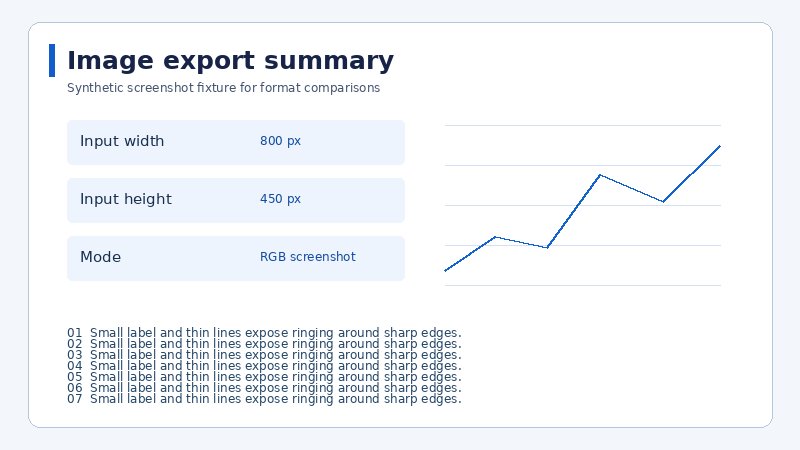
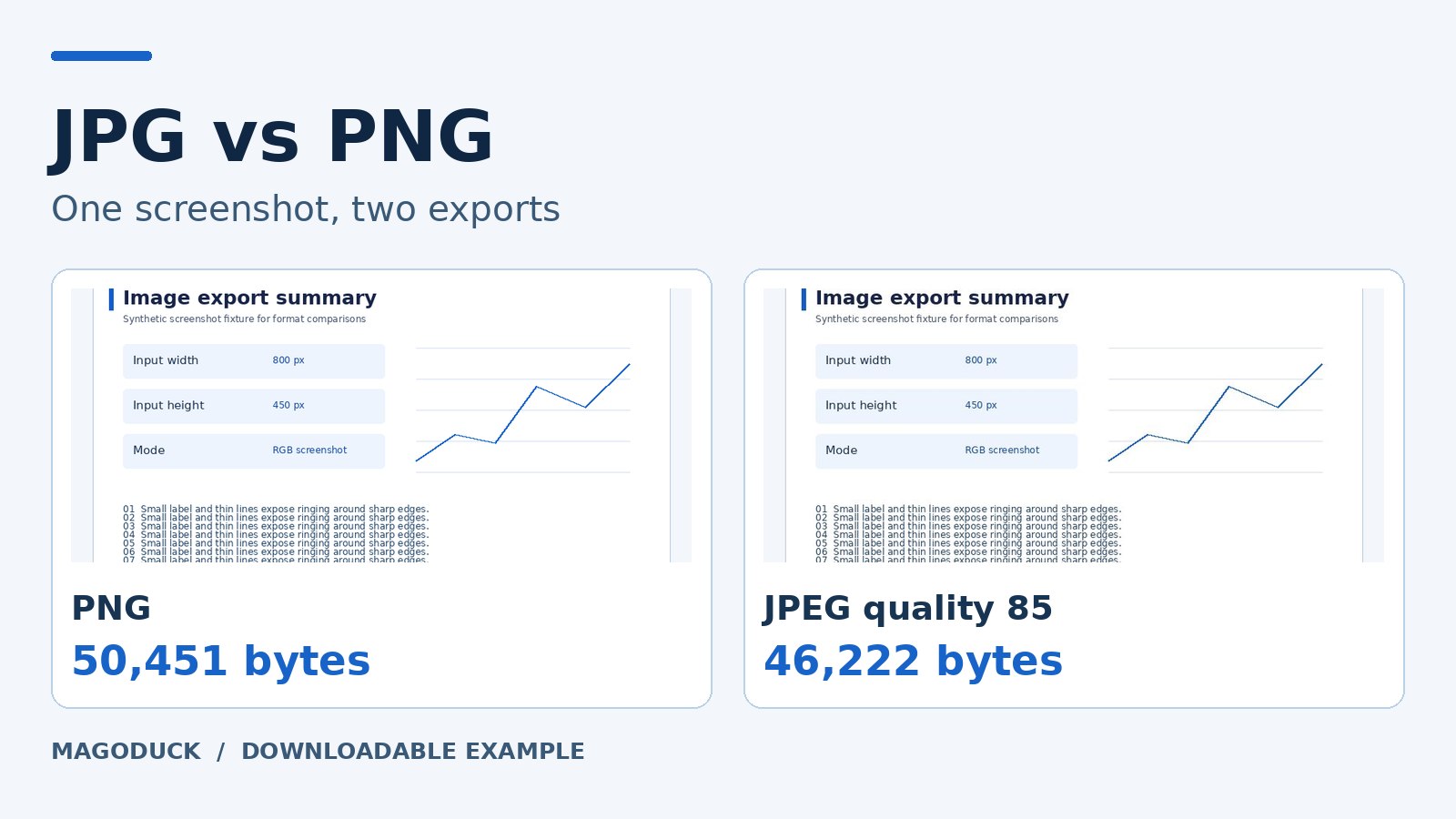
    Use PNG when sharp text or transparency matters. Use JPEG for photos or when an upload form requires it. On the downloadable screenshot below, JPEG was smaller and changed pixels around fine details. PNG preserved every decoded pixel.

    Examples checked November 11, 2026.

    Evidence and accountability: read our testing methodology, contributor profile and editorial and corrections policy. The dated examples are specific tests, not a guarantee for every file or device.

    JPG vs PNG at a glance

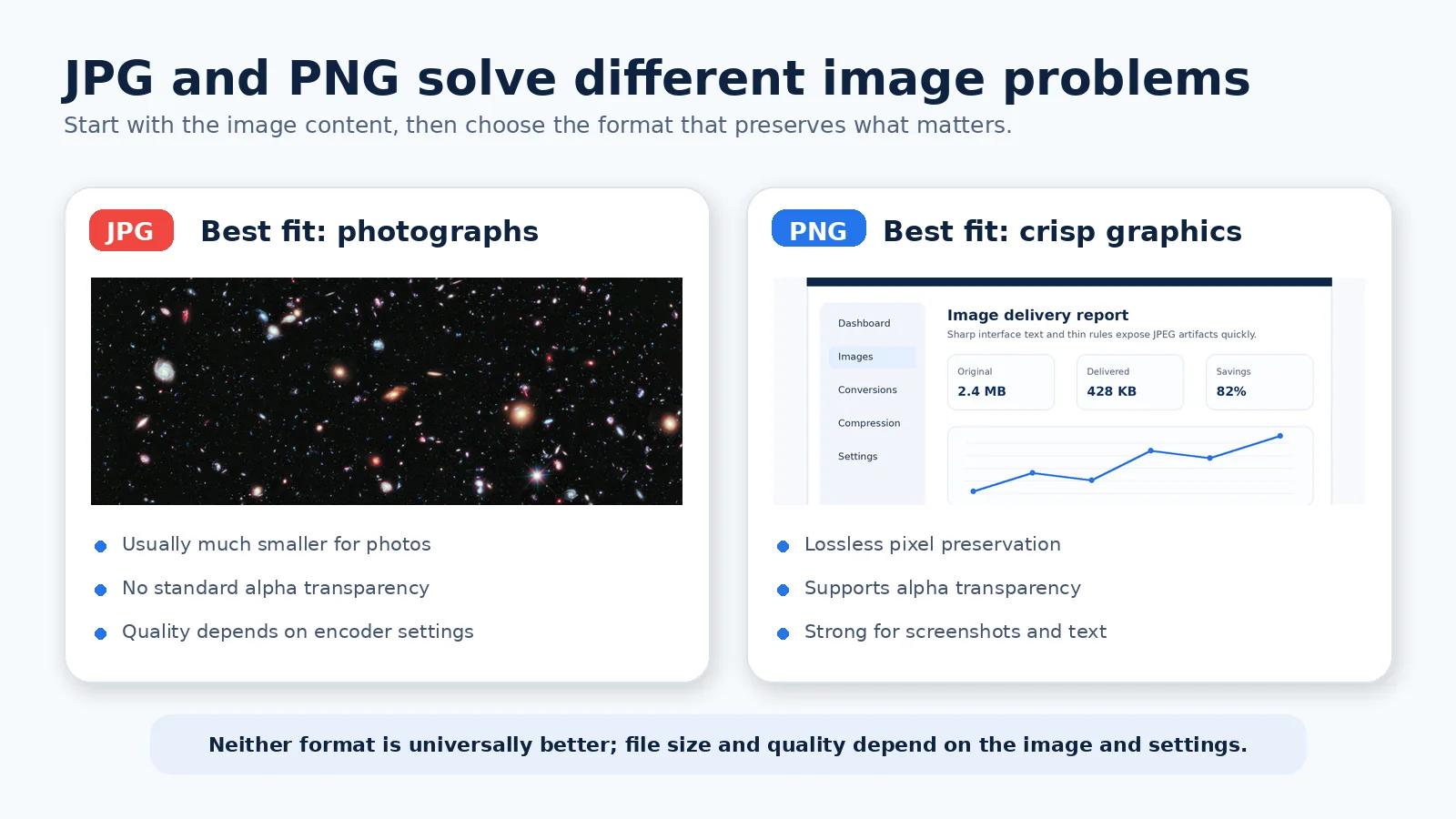
    JPG and PNG solve different image problems. JPEG compression is designed to remove image information in ways that can greatly shrink photographs. PNG preserves its represented pixel data losslessly and can store alpha transparency, which makes it especially useful for graphics, screenshots and compositing.

    Practical differences between JPG and PNG
    Area JPG / JPEG PNG
    Compression Normally lossy in everyday photo and web workflows Lossless DEFLATE-based compression
    Typical strength Continuous-tone photographs Sharp graphics, screenshots, text and transparency
    Transparency No standard alpha transparency Supports alpha transparency
    Photographs Usually a practical choice when file size matters Can preserve pixels losslessly but may be much larger
    Screenshots / UI Can add ringing or block artifacts around crisp edges Often a strong fit for flat areas and sharp text
    Logos / graphics Usable when transparency and exact edges are unimportant Often preferable for flat graphics and alpha
    File size Often smaller for photographic content; setting-dependent Can be smaller for simple flat graphics; content-dependent
    Repeated saving Repeated lossy re-encoding can accumulate artifacts Lossless re-encoding does not inherently add compression loss
    Browser use Longstanding, broadly supported web image format Longstanding, broadly supported web image format
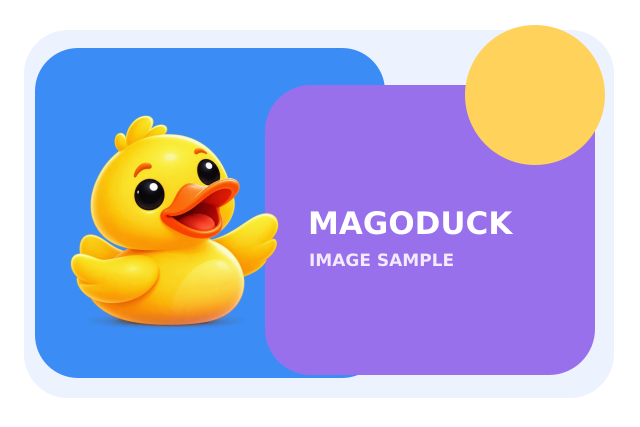
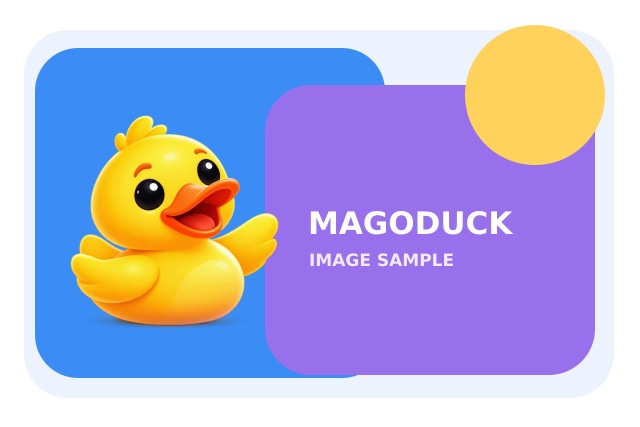
    Editorial JPG and PNG comparison using a photographic image and a crisp interface screenshot.
    JPG usually excels at compressing photographs; PNG is designed for lossless pixels and can preserve alpha transparency.

    What is JPG?

    JPG and JPEG refer to the same JPEG image format family in normal use. The shorter .jpg extension became common because older systems favored three-character file extensions; .jpeg does not represent a different quality tier or a different modern format.

    JPEG is best known for lossy compression. Instead of preserving every represented pixel value exactly, a typical encoder transforms and quantizes image information so that less data needs to be stored. The amount of loss depends on the encoder and its settings. That trade-off is often effective on photographs because natural scenes contain gradual color and tone changes where moderate compression can be hard to notice at normal viewing sizes.

    A “JPEG quality 85” file does not have one universal size. Two 1600×900 images saved at the same nominal quality can differ greatly because texture, noise, edges, color variation, encoder behavior and chroma subsampling all affect the result.

    What is PNG?

    PNG is a lossless raster image format. Its compression can reduce storage without intentionally throwing away the represented pixel values. PNG also supports transparency, including an alpha channel that can describe fully transparent, fully opaque and partially transparent pixels.

    Lossless does not mean “magically better.” A PNG created from an already-compressed JPEG preserves the JPEG-decoded pixels it receives; it cannot reconstruct detail that an earlier JPEG encode discarded. Lossless also does not mean small: a detailed photograph can require far more bytes as PNG than as a sensibly compressed JPEG.

    JPG vs PNG: the differences that actually matter

    Image quality

    PNG avoids the additional compression loss associated with ordinary JPEG encoding, so it is useful when exact edges or pixel values matter. JPEG trades some image information for smaller files. At moderate settings, that trade can be visually acceptable for photographs; at aggressive settings, block boundaries, ringing around edges and smeared fine detail become easier to see.

    This is why “PNG has better quality” is too broad. PNG can preserve a given raster without lossy compression, but the original source, dimensions and prior processing still determine how much real detail exists.

    File size

    Neither format is always smaller. Photographic content often compresses much more efficiently as JPEG. Flat interfaces, diagrams and illustrations with large repeated areas can compress very efficiently as PNG. The controlled MAGODUCK tests below show both outcomes.

    Why is my PNG file so large?

    A high-resolution photograph can produce a large PNG because the encoder preserves every pixel and has fewer repeated patterns to compress. Check both dimensions first. If your destination allows smaller dimensions, resize the image and compare the new file size. To retain dimensions and transparency, try the lossless PNG compressor and compare the output bytes. A photo that can use an opaque format may be smaller as a JPEG.

    Transparency

    PNG can store alpha transparency; standard JPEG cannot. If a transparent PNG is converted to JPEG, the transparent pixels must be composited against some background before the JPEG is encoded. The chosen background is a conversion decision, not a property of JPEG itself.
    The same transparent graphic on a navy JPEG background
    JPEG stores the chosen background as part of the image.

    JPG vs PNG for photographs

    For ordinary photographic delivery, JPG is usually the more practical of these two formats when file size matters and transparency is not required. Photographs contain enough tonal and color variation that PNG’s lossless compression often produces a substantially larger file.

    There are exceptions. PNG can make sense for a photographic intermediate when you specifically need lossless pixel preservation between processing steps, although professional workflows may use other source/master formats instead. If the destination supports newer formats such as WebP or AVIF, they may offer better compression for web delivery than either JPG or PNG; that is a separate choice from the JPG-versus-PNG decision.

    JPG vs PNG for screenshots and text

    PNG is often the safer default for screenshots, interface captures and graphics containing small text. Lossless compression keeps high-contrast edges exact, while JPEG can introduce visible noise around letters, icons and thin lines.

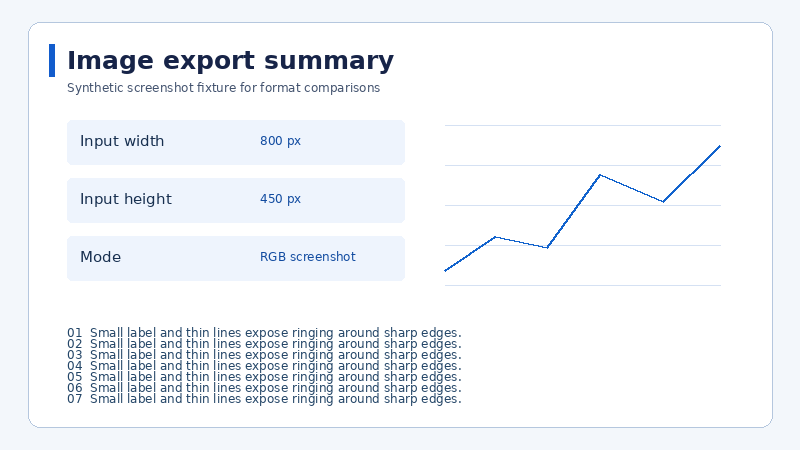
    In the downloadable screenshot comparison, the JPEG saved 8.4% in bytes. Inspect the edges of the labels at 100% zoom when a screenshot must remain readable.

    JPG vs PNG for logos and graphics

    PNG is usually the more suitable of these two formats for raster logos, flat-color graphics and artwork that needs transparent edges. It preserves crisp boundaries and alpha. For simple flat imagery, its file can also be smaller than JPEG because repeated colors and patterns compress efficiently.

    For a logo that can be represented as vectors, SVG may be a better delivery format than either JPG or PNG because it can scale without raster resampling. If you need a raster copy, PNG remains a common choice.

    JPG vs PNG for websites

    There is no rule that “JPG is fast” and “PNG is slow.” Website performance depends on the bytes actually transferred, the rendered dimensions, responsive image delivery, caching, decoding cost and how well the chosen format matches the content.

    A 4000-pixel-wide JPEG delivered into a 400-pixel slot can be wasteful despite being JPEG. A tightly cropped PNG icon can be tiny. For modern websites, WebP and AVIF may be worth considering for eligible images, but JPG and PNG remain useful fallbacks and source formats because support is broad and their behavior is predictable.

    For social platforms, follow the platform’s current upload requirements rather than assuming the uploaded extension will be preserved. Services may resize or re-encode images after upload, so keep a separate source/master when the original matters.

    Editing and re-saving

    If you expect repeated edits, keep a high-quality source or master rather than repeatedly opening and re-encoding the same JPEG. Every lossy JPEG encode can discard more information, so artifacts may accumulate across generations. PNG compression itself is lossless, meaning re-encoding an unchanged PNG does not inherently create another round of JPEG-style compression loss.

    That statement has limits: actual editing operations, resizing, color-space conversions, palette reduction or other processing can still change pixels even when the final container is PNG.

    Downloadable screenshot comparison

    Both outputs came from this 800 × 450 synthetic screenshot. We compared each decoded output with the same pre-encode pixels.

    One screenshot, two formats
    Output File size Changed decoded pixels
    PNG 50,451 bytes 0
    JPEG at 85 46,222 bytes 204,388

    We ran these exports on November 11, 2026 in Chromium 156.0.8078.79. We decoded each source, drew it at the stated dimensions, encoded it with Canvas, and reopened the output. The measurement file with settings and SHA-256 hashes records file sizes and decoded pixel counts. Run node tests/blog-examples-v498.cjs /path/to/outputs from the plugin with Playwright and Chromium installed. Encoders can differ across browser versions.
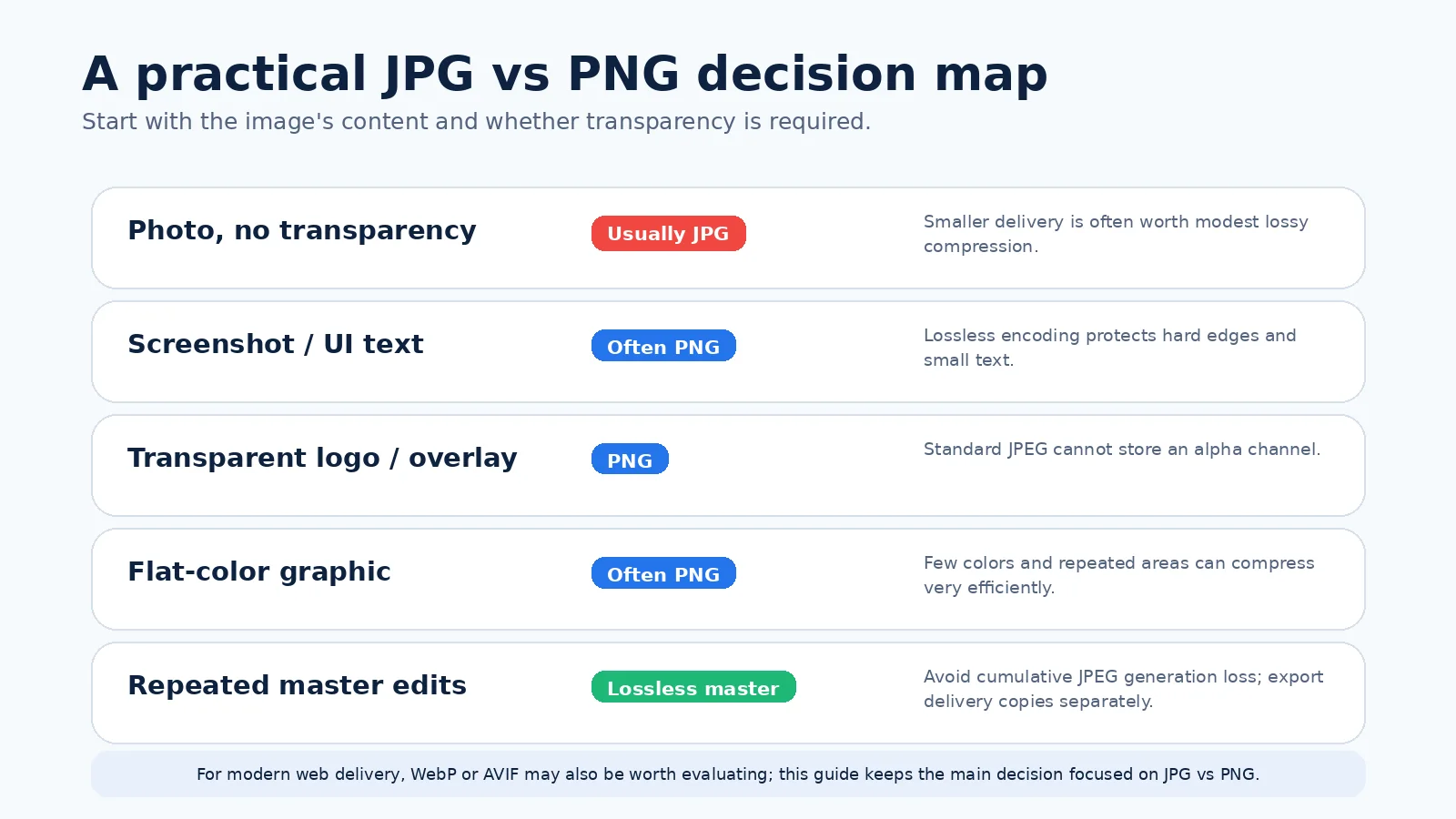
    Decision guide for choosing JPG or PNG for photos, screenshots, transparent graphics and repeated editing.
    A practical starting point: match the format to the image rather than assuming one format is always superior.

    Which format should you use?

    Start with the visual job the file must do. Then verify the exported file rather than making the decision from the extension alone.

    Scenario-based format guide
    Scenario Usually start with Why
    Photo for a web page JPG Often much smaller than PNG for continuous-tone imagery when transparency is unnecessary
    Transparent raster logo PNG Supports alpha transparency and sharp edges
    UI / app screenshot PNG Preserves text and hard edges without lossy artifacts
    Flat infographic or diagram PNG Lossless edges; simple color areas may compress efficiently
    Photo sent as a compact attachment JPG Quality can be traded for a smaller photographic file
    Image that will be edited repeatedly Lossless/source master Avoid repeated lossy JPEG generations; PNG may work for raster graphics, but the best master format depends on the workflow

    Common JPG and PNG mistakes

    • Converting JPG to PNG does not restore lost quality. It preserves the pixels decoded from that JPEG; discarded JPEG detail is not reconstructed.
    • PNG is not automatically higher resolution. Resolution comes from pixel dimensions (and, for printing, how those pixels are mapped to physical size), not from the filename extension.
    • A photo converted to PNG may become much larger. Our controlled photo grew from 262.3 KiB as JPEG quality 85 to 2,188.0 KiB as PNG.
    • JPEG cannot preserve PNG alpha transparency. A converter has to flatten transparent areas against a chosen background or otherwise change the image before JPEG encoding.
    • Format alone does not determine website speed. Oversized dimensions, poor responsive delivery and weak compression can waste more bytes than the extension suggests.
    • Metadata behavior is not guaranteed by a conversion. Both format containers can carry metadata in various workflows, but a converter may intentionally strip, rewrite or preserve only some fields.

    What happens when you convert JPG to PNG?

    The converted PNG can stop any new JPEG compression from being added at that conversion step, but it cannot recover details already removed by JPEG compression. The PNG usually stores the decoded JPEG pixels losslessly, which can also make the output substantially larger without making the image sharper.

    Why does a transparent PNG turn white in JPG?

    JPEG has no alpha channel. In the PNG to JPG converter, select the background color that matches where the file will be used. Open the exported JPEG on a second background to confirm the result. Keep PNG or a supported WebP when you need transparent pixels.

    Try the transparent PNG and compare the same image exported on white and on navy. To keep the decoded pixels of an existing JPEG in a lossless format, use the JPG to PNG converter.

    JPG vs PNG FAQ

    How do I submit a PNG screenshot when a form only accepts JPG?

    Make a JPEG copy, choose a solid background if needed, and zoom in to check small text. Keep the PNG as a reference in case you need a sharper copy later.

    Is PNG better quality than JPG?

    Not automatically. PNG compression is lossless, so it does not add JPEG-style compression loss to the represented pixels. But a low-quality source remains low quality, and converting an existing JPEG to PNG does not restore discarded detail.

    Is PNG always larger than JPG?

    No. The image content matters. JPEG often compresses photographs more efficiently, while PNG can be smaller for flat graphics or some screenshots. Compare the actual exports rather than assuming either file type always wins.

    Can a JPG have transparency?

    Standard JPEG does not provide an alpha channel. If you convert a transparent image to JPEG, transparent pixels must be flattened or otherwise replaced during the conversion.

    Does converting JPG to PNG improve quality?

    No. The new PNG can preserve the JPEG-decoded pixels without further lossy compression, but it cannot recreate detail removed by the previous JPEG encoding.

    Which format should I use for a website?

    For these two formats, JPEG is commonly practical for photographs and PNG for transparency, screenshots and crisp graphics. Also optimize pixel dimensions and responsive delivery, and consider modern formats such as WebP or AVIF when appropriate.

    Which format is best for screenshots?

    PNG is often the better starting point for screenshots with text, icons and flat interface colors because it preserves sharp edges losslessly. A screenshot dominated by photographic content can behave differently, so compare the actual exported files when size is critical.

    Methodology and sources

    For reference, the earlier reported tables (CSV) record the previous article figures. The original inputs for those figures are unavailable. The examples above use the downloadable files shown here.

    The image format specifications explain what can be stored. The downloadable comparison shows what one encoder produced.

    Editorial transparency: This guide was drafted with AI assistance. The downloadable 800 × 450 screenshot exports and their recorded encoder settings support the size and pixel-comparison examples here; they are not evidence that PNG wins for every screenshot. Choose the format for the particular image you need to send.

    The practical decision

    Choose JPG when the image is mainly photographic and you want an efficient file without transparency. Choose PNG when sharp graphics, screenshots, text or alpha transparency matter. Then export a real sample and compare it. Content and settings can reverse the file-size result, and converting between formats cannot manufacture detail that was never there.
  • Convert iPhone HEIC Photos to JPG for Windows and Uploads

    Convert iPhone HEIC Photos to JPG for Windows and Uploads

    Quick answer

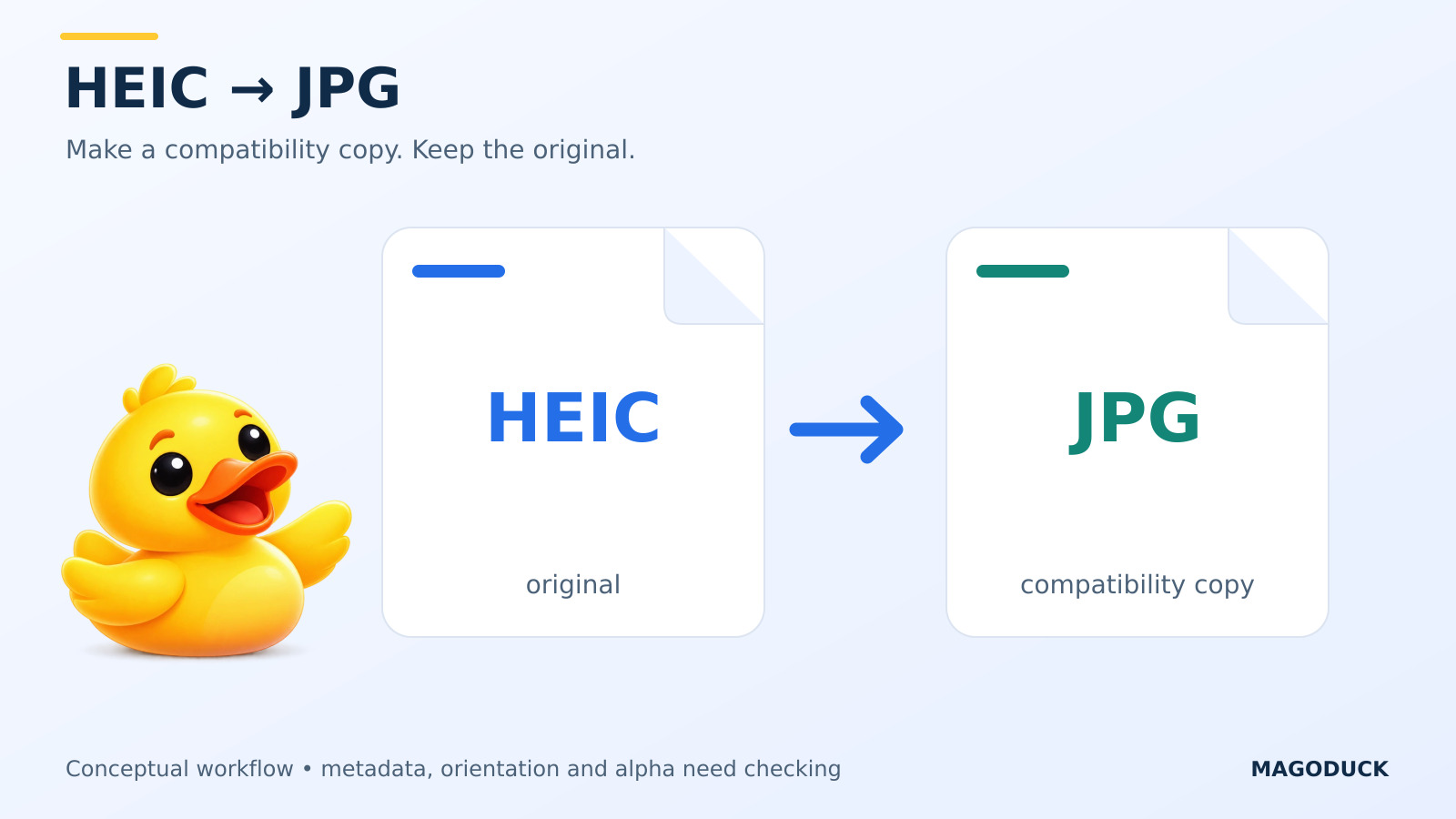
    Make a JPEG copy when an upload form or editor needs it. Keep the HEIC original and compare orientation, color and metadata on the device where you will use the copy. MAGODUCK processes the primary supported still image locally in the browser.

    Examples checked November 11, 2026.

    Evidence and accountability: read our testing methodology, contributor profile and editorial and corrections policy. The dated examples are specific tests, not a guarantee for every file or device.

    Why does my iPhone save photos as HEIC?

    Apple uses High Efficiency image workflows because HEIF/HEVC can store high-quality photos more efficiently than older JPEG workflows. Apple currently recommends High Efficiency capture on supported devices, while also offering a Most Compatible option for people who regularly need JPEG/H.264 files.

    The practical point is simple: HEIC is not a problem by itself. Convert only when your destination cannot use it or when your workflow explicitly needs a JPEG copy.

    What is HEIC, and is it the same as HEIF?

    HEIF is the broader High Efficiency Image File Format container concept. Apple developer documentation distinguishes public.heif from public.heic: HEIC is the HEIF file type used for HEVC-compressed images. HEVC/H.265 is the coding technology; HEIF is the container family; HEIC is the HEVC-based image file type.

    That distinction matters because a HEIF container can hold more than a single flat image: metadata, auxiliary images, sequences, alpha and other properties may be present. A normal JPEG export is a much simpler derivative.

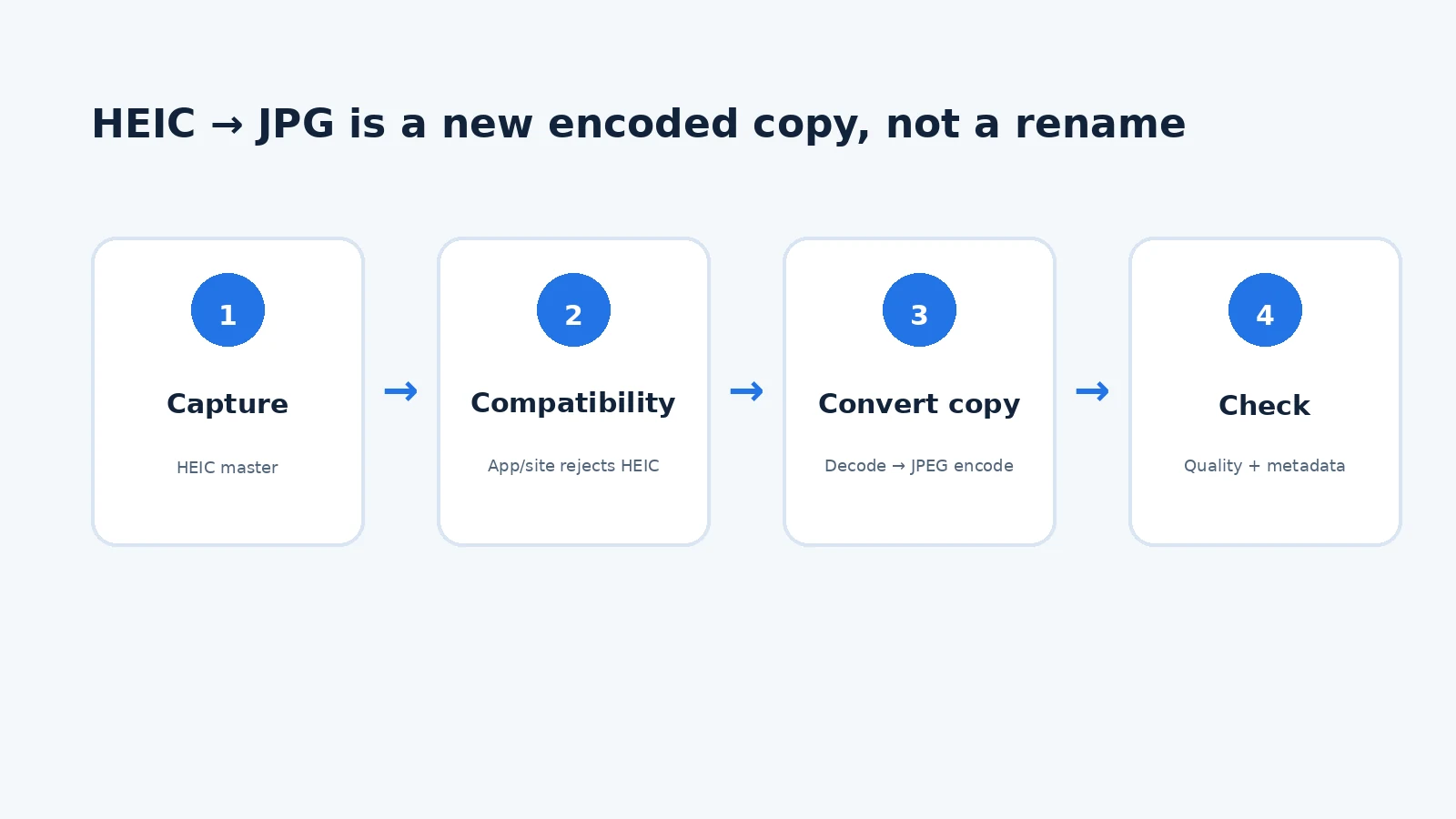
    Four-step diagram showing HEIC capture, a compatibility need, JPEG conversion and output checking.
    Conceptual workflow. This diagram is explanatory, not test evidence.

    Why convert HEIC to JPG?

    JPEG remains extremely broadly accepted by upload forms, editors, messaging systems and older workflows. HEIC support is less uniform. Current browser support is especially uneven: Safari supports HEIC in modern versions, while Chrome and Firefox do not provide general HEIC image support in the same way. Windows can support HEIF through Microsoft codecs/extensions, and Android platform support exists on modern versions but can still depend on the device and application.

    So the best reason to convert is compatibility, not an assumption that JPG is always smaller or better.

    Does HEIC to JPG reduce quality?

    Usually, yes in the strict technical sense. The HEIC image must be decoded to pixels and then encoded as JPEG. Standard JPEG encoding is lossy. A high-quality export may look essentially unchanged at normal viewing size, but it is still a new encoded file.

    A JPEG copy can keep the same width and height while changing decoded pixels and metadata. Compare the original and copy at the intended display size.

    Downloadable browser conversion example

    Try this synthetic file in the HEIC to JPG converter. In the Chromium test, the bundled decoder read the primary still image and the browser saved a JPEG.

    Files from the HEIC to JPG tool test
    File Dimensions File size
    HEIC input 160 × 96 1,064 bytes
    JPEG output 160 × 96 1,256 bytes

    The test covers this one synthetic still. It does not measure HDR fidelity, metadata retention or every HEIF container structure. Preview your own file before discarding anything.

    What happens to orientation, metadata and GPS?

    Do not assume a converter always strips metadata, and do not assume it always preserves it. Behavior depends on the decoder/encoder pipeline.

    Compare whether portrait and landscape photos open upright after conversion. Orientation can be represented by container transforms or metadata, and tools can handle them differently.

    The MAGODUCK browser path writes a JPEG from decoded pixels. If EXIF, GPS or capture time matters, inspect both copies before sharing or archiving. Save the original for metadata and future editing.

    What about transparency, HDR and extra HEIF data?

    Standard JPEG has no alpha channel. MAGODUCK renders transparent regions against a background for JPEG output. If transparency is essential, keep the original or use a suitable lossless format.

    Use the original when HDR, wide gamut, a Live Photo video, depth data or other auxiliary images matter. The downloadable example is an ordinary still conversion.

    How to change future iPhone photos to JPEG

    Apple’s current support guidance uses this path on supported iPhone/iPad models:

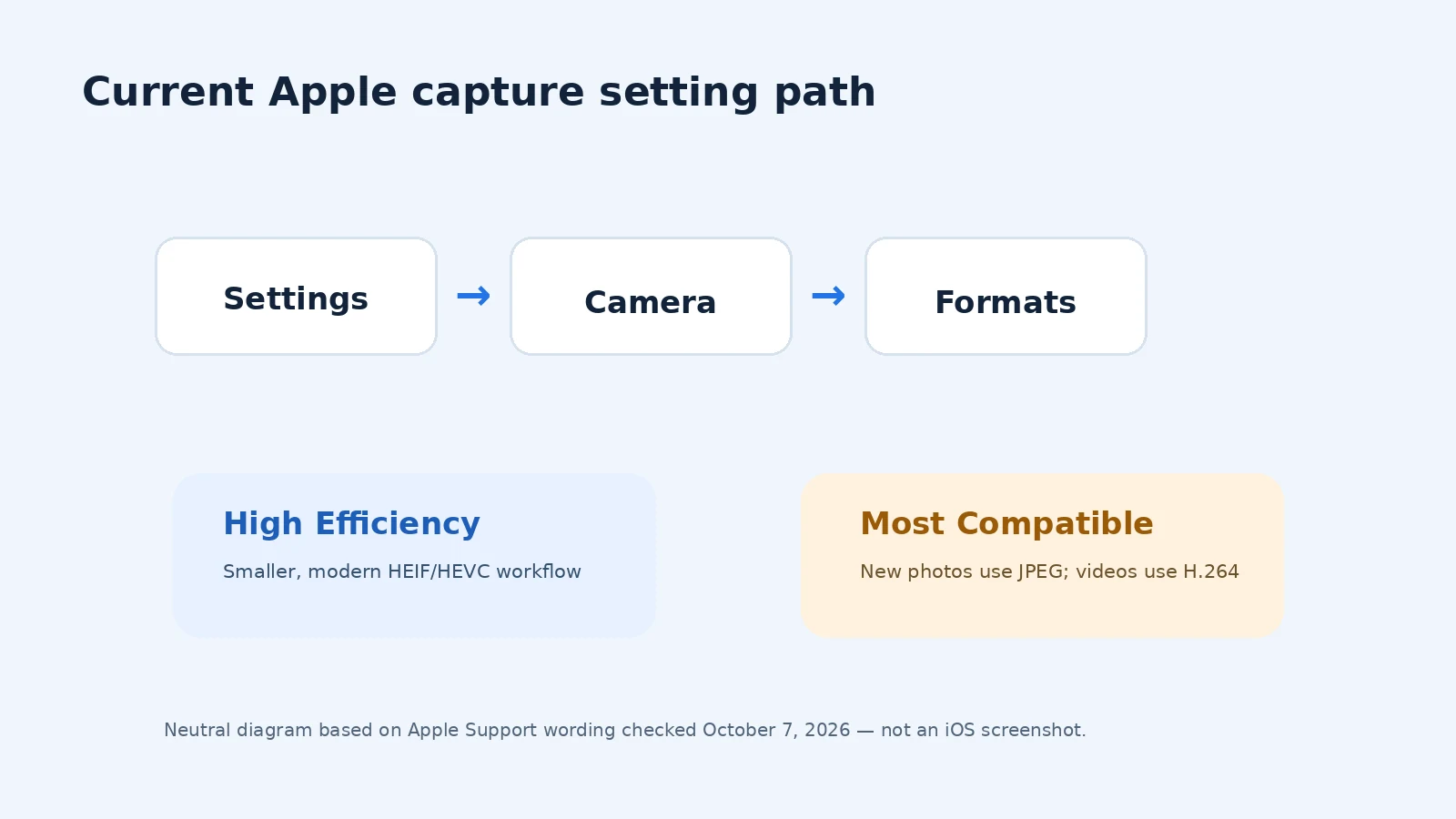
    Settings → Camera → Formats → Most Compatible

    With Most Compatible selected, new photos use JPEG and new videos use H.264. To return to the space-saving formats, choose High Efficiency. You do not need to change this permanently if your normal workflow already handles HEIC well.

    Neutral diagram showing Settings to Camera to Formats, then High Efficiency versus Most Compatible.
    This is a neutral diagram based on current Apple Support guidance checked October 7, 2026. It is not a fabricated iOS screenshot.

    What happens when you share or import HEIC?

    Apple says some AirDrop, Messages or email workflows may automatically send a more compatible format when the receiving device does not support HEIF/HEVC. Apple also notes that USB imports may convert media. If you want to avoid conversion during supported transfer workflows, the current setting is under Settings → Apps → Photos → Keep Originals.

    That behavior is conditional, so do not rely on auto-conversion for every upload, app or transfer path.

    How to convert HEIC to JPG safely

    1. Keep the HEIC original. Treat JPEG as a derivative copy.
    2. Convert only when compatibility requires it. If the destination already accepts HEIC, conversion may be unnecessary.
    3. Use a sensible JPEG quality. Higher quality usually means a larger file, but encoder scales are implementation-specific.
    4. Check orientation and dimensions. Make sure portrait images are not rotated or mirrored.
    5. Inspect metadata. If location or camera data matters, verify the actual output instead of assuming.
    6. Be cautious with HDR, alpha and auxiliary data. Standard JPEG may not preserve capabilities present in a HEIF container.

    On a Mac, Apple documents a straightforward manual path: open an HEIF image in Photos or Preview, choose File → Export, then select JPEG or PNG.

    How to convert HEIC photos to JPG on a Windows PC

    1. Save the original HEIC photo to your PC and open the HEIC to JPG converter in your browser.
    2. Select the HEIC still and wait for its preview. Choose your JPEG quality and convert.
    3. Download the JPG and open it to check orientation and detail. Keep the original if you need HEIC metadata or HDR data.

    The browser workflow uses a bundled decoder for supported HEIC stills. If you open the original in Windows Photos, the app may ask for HEIF and HEVC extensions. See Microsoft’s Windows Photos guidance.

    HEIC vs JPG at a glance

    Topic HEIC JPG
    Typical role Efficient modern photo container/workflow Broadly compatible photo exchange format
    Compression Commonly HEVC-based for .heic Lossy JPEG encoding
    Transparency Can be represented in HEIF workflows No alpha channel
    Metadata/container capability Can carry richer container structures and auxiliary data Simpler single-image workflow with EXIF/XMP profiles
    Browser compatibility Uneven Extremely broad
    Best decision Keep as master when your workflow supports it Create a copy when compatibility is the priority

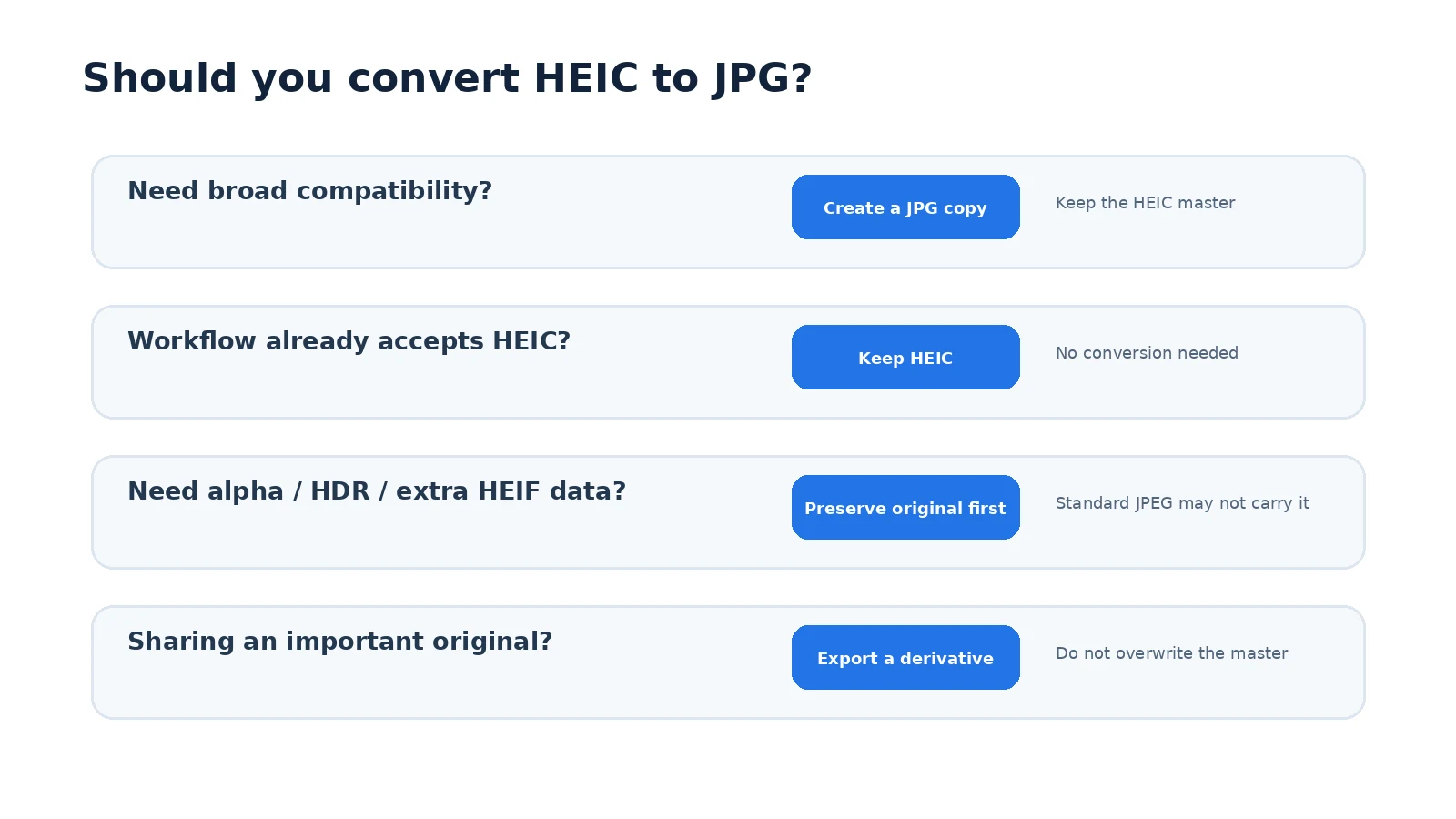
    When should you convert?

    Decision guide showing when to keep HEIC and when to create a JPG copy.
    Compatibility problem: make a JPEG copy. HEIC works already or rich HEIF properties matter: preserve the original.

    About MAGODUCK’s HEIC to JPG tool

    Use a supported HEIC/HEIF still file, wait for the preview, choose quality and download the JPEG. If a file fails to decode, try exporting a JPEG directly from the original app or device.

    HEIC to JPG FAQ

    What if a photo I downloaded on my iPhone ends in .avif?

    Use an AVIF converter for a supported AVIF still. Use an HEIC converter for a supported HEIC camera photo. Check the file type if the extension is missing.

    What is a HEIC file?

    A HEIC file is a HEIF image file whose image data is HEVC-compressed in Apple’s file-type terminology.

    Why does iPhone use HEIC?

    Apple uses high-efficiency formats to reduce storage needs while maintaining high visual quality and supporting modern imaging workflows.

    Does HEIC to JPG reduce quality?

    JPEG re-encoding is normally lossy, so the output is not mathematically identical even when it looks very similar.

    Will conversion remove metadata or location?

    Not necessarily. Converter behavior varies. Our libheif reference test preserved EXIF, and a controlled fixture with synthetic GPS coordinates retained them in the JPEG output. That is not a promise about every converter or the future MAGODUCK tool.

    Can JPG be larger than HEIC?

    Yes. In our controlled fixture every JPEG export was larger than the HEIC source. Real photos can behave differently.

    Should I use High Efficiency or Most Compatible?

    Keep High Efficiency if your workflow accepts HEIC. Use Most Compatible when repeated compatibility problems justify capturing new photos as JPEG.

    Test details

    The sample was run through the MAGODUCK tool in local WordPress using Chromium 156.0.8078.79. The tool measurements record sizes and SHA-256 hashes.

    For reference, the earlier reported tables (CSV) record the previous article figures. The original inputs for those figures are unavailable. The examples above use the downloadable files shown here.

    Sources

    Editorial transparency: This guide was drafted with AI assistance. The bundled HEIC-to-JPG example is one small synthetic still, not a test of every iPhone file, HEIF feature or metadata field. Keep your original, check the exported copy, and treat device-specific support as unverified until you test your own file.

    The practical rule

    Keep HEIC when it works. Make a JPG copy when compatibility requires it. Preserve important originals before converting, and verify orientation, metadata and appearance on the actual output.

    MAGODUCK is not affiliated with or endorsed by Apple.

  • Choose WebP, PNG or JPG for Website Images

    Choose WebP, PNG or JPG for Website Images

    Quick answer

    Use JPEG when the receiving app requires it, PNG when you need exact decoded pixels or transparency, and WebP when the destination supports it and the exported file meets your quality and size needs. Compare files at the same dimensions before choosing.

    Examples checked November 11, 2026.

    Evidence and accountability: read our testing methodology, contributor profile and editorial and corrections policy. The dated examples are specific tests, not a guarantee for every file or device.

    The comparison below measures encoded bytes. Page loading also depends on when the browser discovers the image, which size it requests and the cost of transfer and decoding.

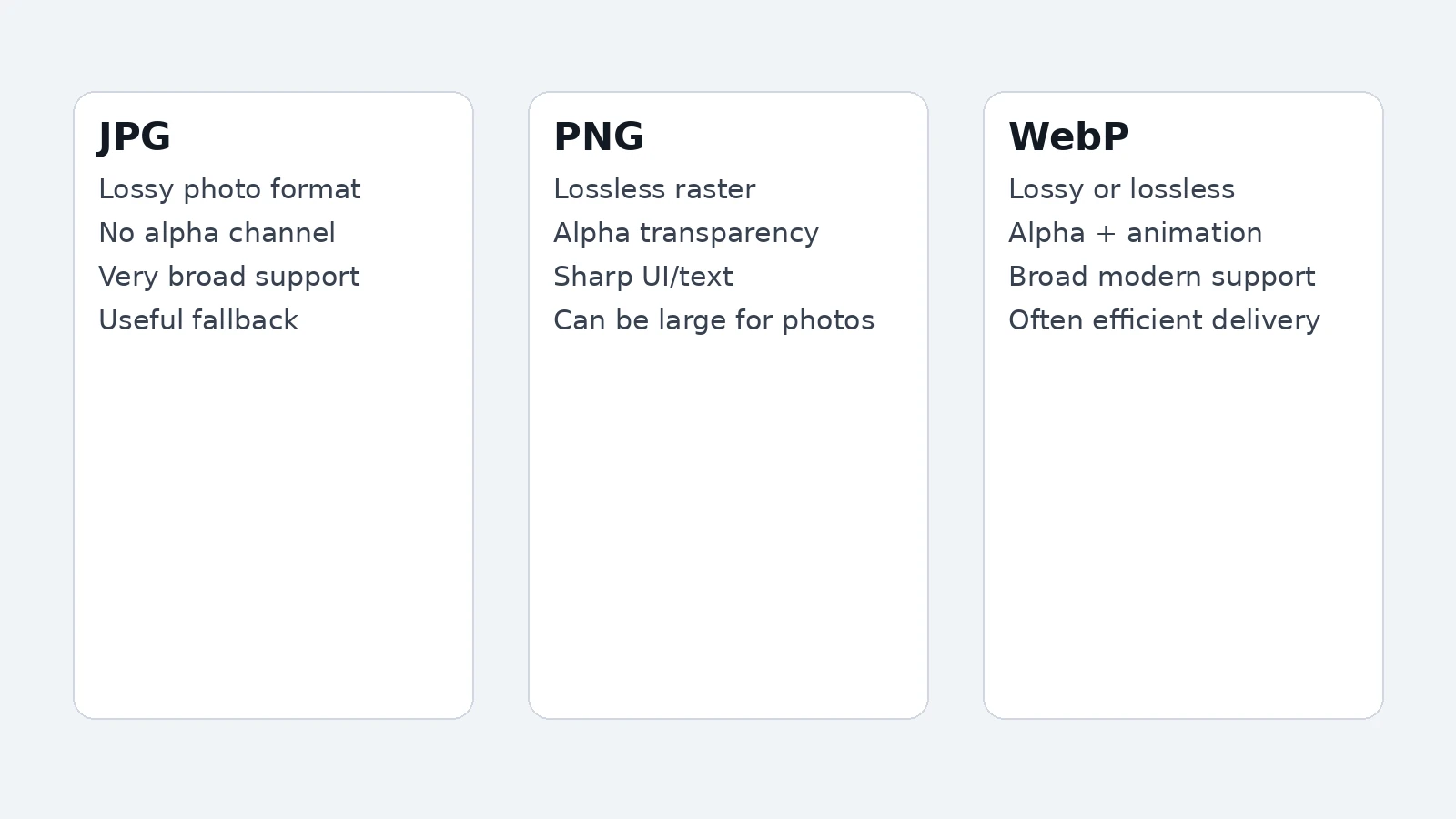
    WebP vs PNG vs JPG at a glance

    Format capabilities and typical website roles
    Question WebP PNG JPG / JPEG
    Compression Lossy or lossless Lossless Lossy
    Alpha transparency Yes Yes No
    Animation Yes APNG is possible No
    Photographs Often efficient Usually heavy for complex photos Still practical and widely compatible
    Screenshots / UI Lossless WebP can work very well Reliable lossless choice Lossy artifacts can hurt text and sharp edges
    Typical modern browser support Broad in Chrome, Edge, Firefox and Safari Universal across modern browsers Universal across modern browsers
    Fallback role Usually the modern source Lossless / alpha fallback when required Photographic fallback when required
    Feature overview comparing WebP, PNG and JPG for website image delivery.
    Format capability matters, but the best delivery choice still depends on the image content and the page where it appears.

    What actually makes a website image fast?

    A smaller file generally needs fewer bytes transferred, but file size is only one part of page performance. For an important image, especially a hero that becomes the Largest Contentful Paint element, loading also depends on how quickly the browser discovers the file, network and server timing, render delay, caching, and whether the browser received an appropriately sized resource.

    That distinction matters because a 150 KiB WebP hidden behind JavaScript can appear later than a slightly larger JPEG discovered immediately in the HTML. Likewise, a 2400-pixel WebP can waste more bandwidth than a correctly sized 1200-pixel JPEG in a 900-pixel slot.

    What is WebP?

    WebP is a raster image format designed for web delivery. It supports lossy encoding, lossless encoding, transparency and animation. Current major browsers support WebP broadly, so old advice that treats WebP as a Chrome-only format is badly outdated.

    That does not mean every WebP is smaller than every JPEG or PNG. The encoder mode, settings and source content still matter.

    What is JPG?

    JPG and JPEG refer to the same commonly used JPEG format family. JPEG is normally a lossy photographic format. It remains useful because it is simple, mature, broadly compatible and can produce efficient photographic files. Standard JPEG does not provide an alpha transparency channel.

    What is PNG?

    PNG is a lossless raster format with alpha transparency support. It remains a strong choice for assets where exact pixel reproduction, crisp UI edges or transparency matter. A photographic PNG, however, can be dramatically larger than an efficient lossy photo export.

    Compare the same image as JPEG and WebP

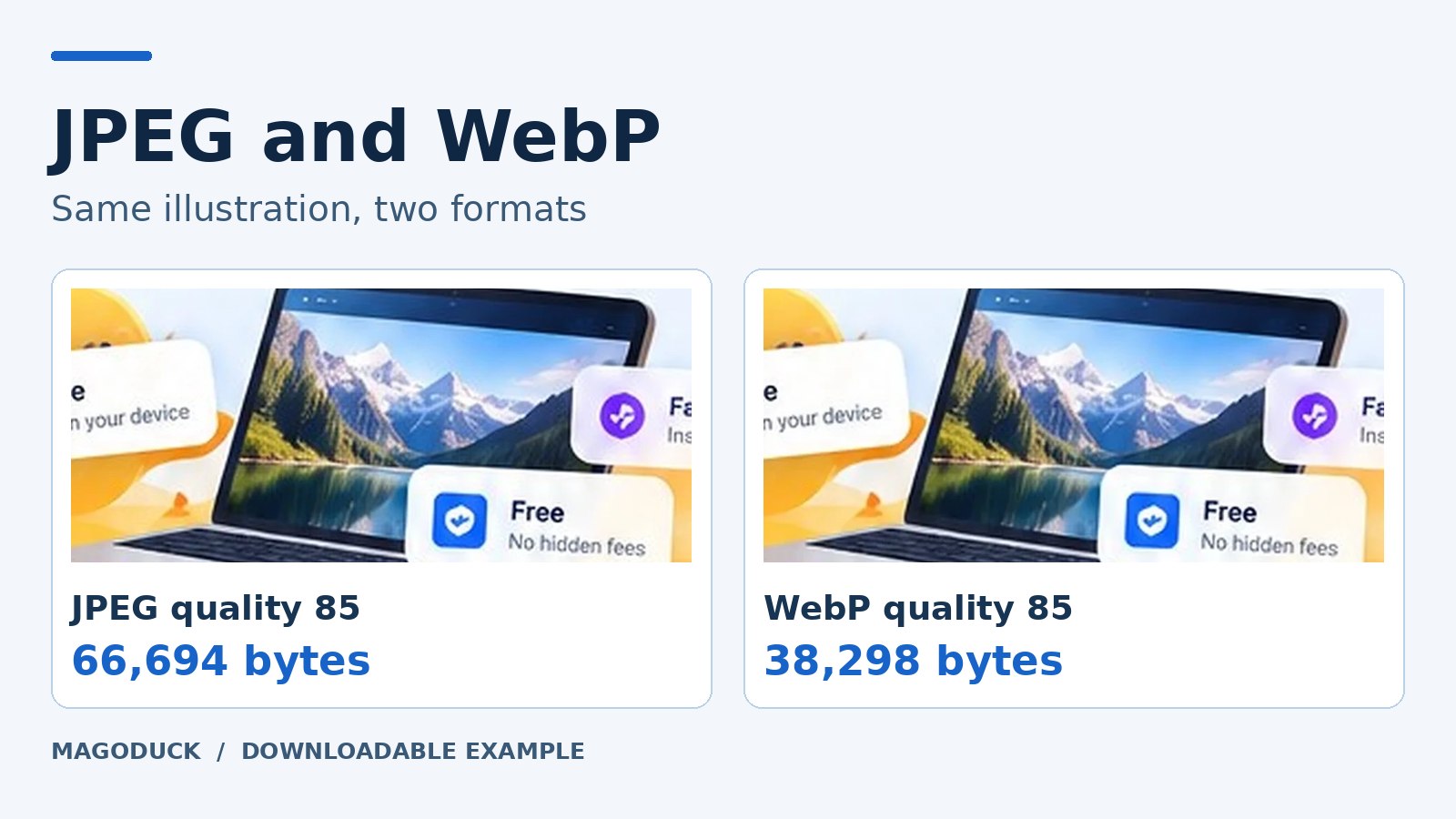
    These exports use the same decoded source at 900 × 600 with the quality parameter set to 0.85 in both encoders. The parameter has different meanings across formats, so compare visible quality yourself.

    One illustration, two browser exports
    Output Dimensions File size
    JPEG quality 85 900 × 600 66,694 bytes
    WebP quality 85 900 × 600 38,298 bytes
    The 900 by 600 sample encoded as WebP
    Download the JPEG and WebP above and inspect them side by side.

    Screenshot and text test

    Lossless PNG or lossless WebP can suit screenshots and flat graphics. Run a comparison on your own image, especially when it contains thin lines or tiny text.

    Transparency test

    PNG and supported WebP can store alpha. If a target requires JPEG, composite transparency on a background before export. Open the saved output to check its edges.

    What the byte comparison tells you about page speed

    For this file, WebP used 42.6% fewer bytes than JPEG. Use a browser network trace on the actual page to confirm which image variant the browser requested and when it was available.

    Measure image transfer and Largest Contentful Paint separately. A smaller file can help when image transfer is part of the delay. Discovery, caching, rendering and the rest of the page also affect the measured result.

    Why dimensions can matter more than format

    Match dimensions to the rendered slot before comparing formats. The Image Resizer can create a smaller copy while maintaining the aspect ratio.

    Responsive images: srcset and sizes

    Use srcset to list real source widths and sizes to describe the expected layout slot. Check the selected resource at more than one viewport width.

    <img
      src="photo-1200.webp"
      srcset="photo-480.webp 480w,
              photo-768.webp 768w,
              photo-1200.webp 1200w,
              photo-1600.webp 1600w"
      sizes="(max-width: 1000px) calc(100vw - 56px), 900px"
      width="1600"
      height="900"
      alt="...">

    How <picture> fits in

    Use <picture> when you need format negotiation or art direction. Modern WebP support is broad, so a fallback is not automatically required for every current-browser audience; it remains useful when your compatibility policy includes older clients or external software that cannot consume WebP.

    <picture>
      <source type="image/webp" srcset="hero-800.webp 800w, hero-1600.webp 1600w">
      <img src="hero-1600.jpg"
           srcset="hero-800.jpg 800w, hero-1600.jpg 1600w"
           sizes="(max-width: 900px) 100vw, 880px"
           width="1600" height="900"
           fetchpriority="high"
           alt="...">
    </picture>

    Should you lazy-load website images?

    Use native loading="lazy" for below-the-fold images where it saves unnecessary work. Do not lazy-load the likely LCP hero. The browser should discover that important resource early. A justified fetchpriority="high" can help the browser prioritize the likely LCP image, but setting high priority on everything defeats the point.

    Always reserve image dimensions with width and height or an equivalent aspect-ratio box so the layout does not jump as images arrive.

    Does WebP make a website faster?

    WebP can reduce transfer bytes when it produces an acceptable-looking file at the same dimensions. Test the actual page before attributing an LCP change to the file format.

    What about AVIF?

    AVIF is another modern raster option with strong compression and support across current major browsers. It can beat WebP on some images, but it adds another encoding/QA decision and has less historical browser depth. For a production pipeline, test AVIF against your actual source images rather than assuming a universal winner. This guide focuses on WebP, PNG and JPEG.

    Which image format is best for fast website loading?

    Start with an appropriately sized WebP or AVIF for photos and compare it with JPEG at a similar visible quality. Use PNG or lossless WebP when crisp screenshot text matters. Check actual download bytes and LCP on the page where the image appears.

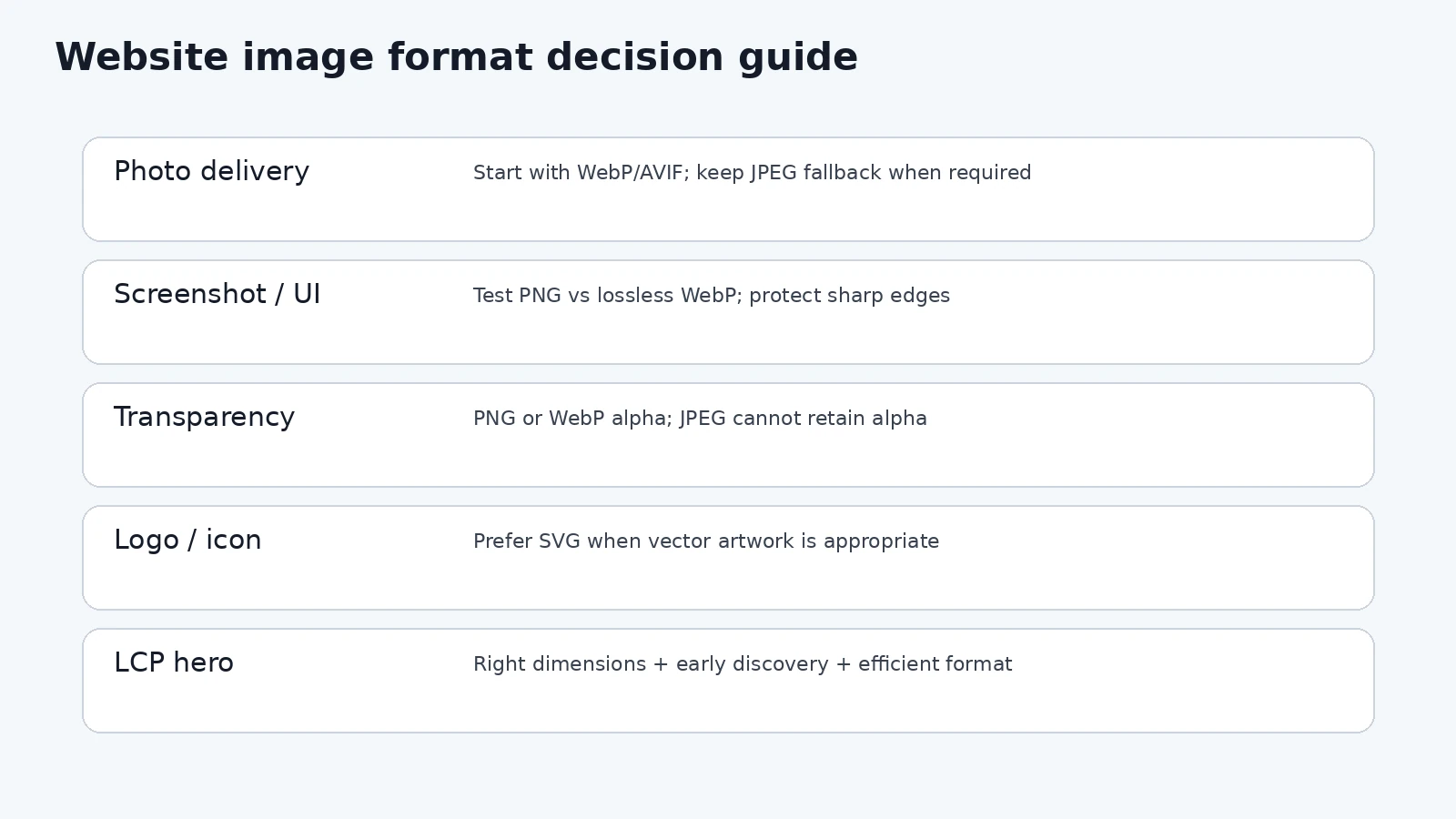
    Practical website delivery decisions
    Scenario Good starting point Why
    Hero photograph WebP or AVIF, tested against JPEG Efficient photographic transfer; keep compatibility needs in view
    Legacy photographic fallback JPEG Mature, broadly supported and still efficient when encoded well
    Screenshot / UI PNG or lossless WebP Protects sharp text and edges
    Transparent raster PNG or WebP with alpha JPEG cannot preserve alpha
    Logo / icon Often SVG Vector assets can scale without raster resizing
    LCP image Efficient format + correct dimensions + early discovery The loading path matters as much as the extension
    Decision guide for choosing website image formats based on photos, screenshots, transparency, vectors and LCP delivery.
    Choose the delivery format after you know the asset type, feature needs, rendered size and browser audience.

    A practical website image workflow

    Try the JPG to WebP converter for a photo or the PNG to WebP converter for a graphic. Check transparency on the saved result.

    1. Start from the master. Do not repeatedly optimize an already damaged derivative.
    2. Choose the rendered dimensions first. Export only the pixels the layout needs, with responsive width candidates where useful.
    3. Choose the format by content. Photos, sharp UI and transparent artwork compress differently.
    4. Encode and inspect. Never trust a quality number without looking at the result.
    5. Keep the LCP image discoverable. Put the real source in HTML; avoid lazy loading it.
    6. Lazy-load below-fold imagery.
    7. Reserve width and height. Prevent layout shift.
    8. Measure the actual page. File-size wins are useful, but production LCP also depends on server, network, caching and rendering.

    Common mistakes

    • Converting a huge 4000px JPEG to WebP and calling the site optimized.
    • Comparing JPEG Q80 with WebP Q80 as though the numeric scales mean the same thing.
    • Calling PNG “slow” instead of describing a specific PNG as large.
    • Treating JPEG as obsolete even when it remains a useful photographic fallback.
    • Lazy-loading the above-the-fold LCP hero.
    • Serving one desktop-sized source to every mobile viewport.
    • Preloading every image or assigning fetchpriority="high" everywhere.
    • Reporting one lab run as a universal speed result.
    • Calling local lab results real-user Core Web Vitals data.

    How the example was measured

    We ran these exports on November 11, 2026 in Chromium 156.0.8078.79. We decoded each source, drew it at the stated dimensions, encoded it with Canvas, and reopened the output. The measurement file with settings and SHA-256 hashes records file sizes and decoded pixel counts. Run node tests/blog-examples-v498.cjs /path/to/outputs from the plugin with Playwright and Chromium installed. Encoders can differ across browser versions.

    For reference, the earlier reported tables (CSV) record the previous article figures. The original inputs for those figures are unavailable. The examples above use the downloadable files shown here.

    Sources

    Short FAQ

    Should I use WebP or JPG for a shop’s product photos?

    Compare both at the same displayed size. Choose the smaller usable file after checking textures and labels, and make sure your storefront accepts it.

    Is WebP better than JPG for websites?

    WebP can reduce file size. Compare decoded quality, dimensions and bytes, and use JPEG when your destination requires it.

    Is WebP better than PNG?

    For many raster assets WebP can be smaller, including lossless and transparent files, but PNG remains a reliable lossless format. Test the actual image rather than replacing formats blindly.

    Does WebP automatically improve LCP?

    No. Fewer bytes can help transfer time, but LCP also depends on discovery, server/network timing and render delay. Our WebP and JPEG photo variants had nearly identical median LCP despite a clear byte difference.

    Is PNG bad for website speed?

    No. A specific PNG may be large or small depending on the content. PNG is often a good fit for sharp UI, diagrams and transparency; it is usually inefficient for complex photographs compared with lossy photo formats.

    Does srcset matter if I already use WebP?

    Yes. WebP does not stop a browser from downloading too many pixels. Responsive width candidates can avoid sending a desktop-sized source to a small mobile slot.

    Should I use WebP or AVIF?

    Both are modern options. AVIF can compress very efficiently, while WebP has broad modern support and mature tooling. Encode your representative images and compare quality, bytes and workflow cost.

    Editorial transparency: This guide was drafted with AI assistance. The included 900 × 600 JPEG and WebP outputs support a file-byte comparison for one illustration. They do not establish an LCP or ranking improvement; those require testing the actual page, network, and device.

    The practical rule

    Optimize the whole delivery path, not just the extension. Pick a format that suits the asset, export the right pixel dimensions, use responsive candidates, keep the likely LCP image discoverable and eager, lazy-load below-fold media, reserve layout space, and measure the page you actually ship.