Quick answer
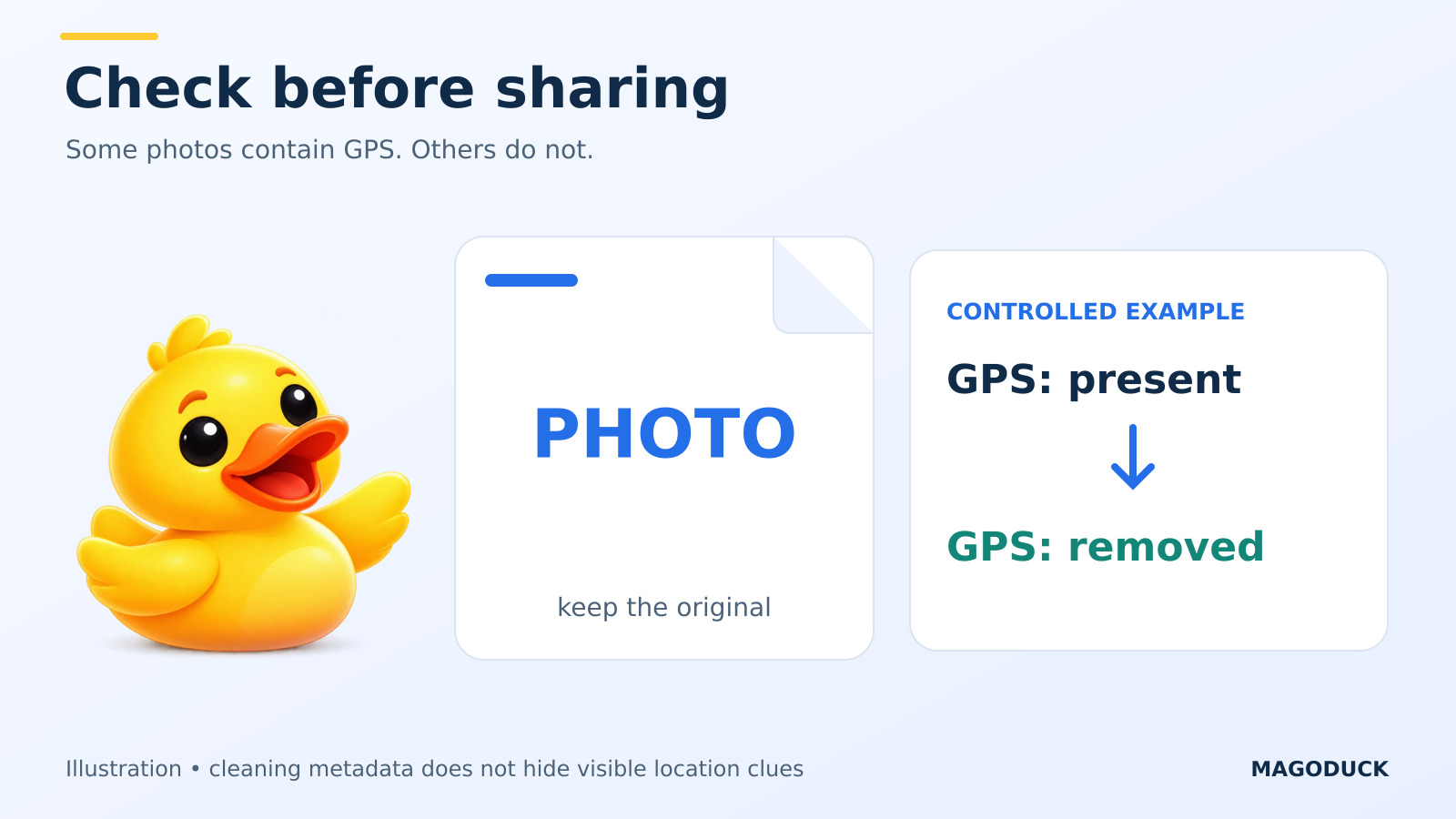
Open the exact file you plan to send in a metadata viewer. If it contains GPS or other fields you want to remove, make a cleaned copy and inspect that saved file again. Visible addresses, landmarks and reflections still need a visual check.
Examples checked November 11, 2026.
Evidence and accountability: read our testing methodology, contributor profile and editorial and corrections policy. The dated examples are specific tests, not a guarantee for every file or device.
The example uses a synthetic GPS tag. Apple and Google Photos sharing guidance was checked on November 11, 2026.
What photo metadata actually is
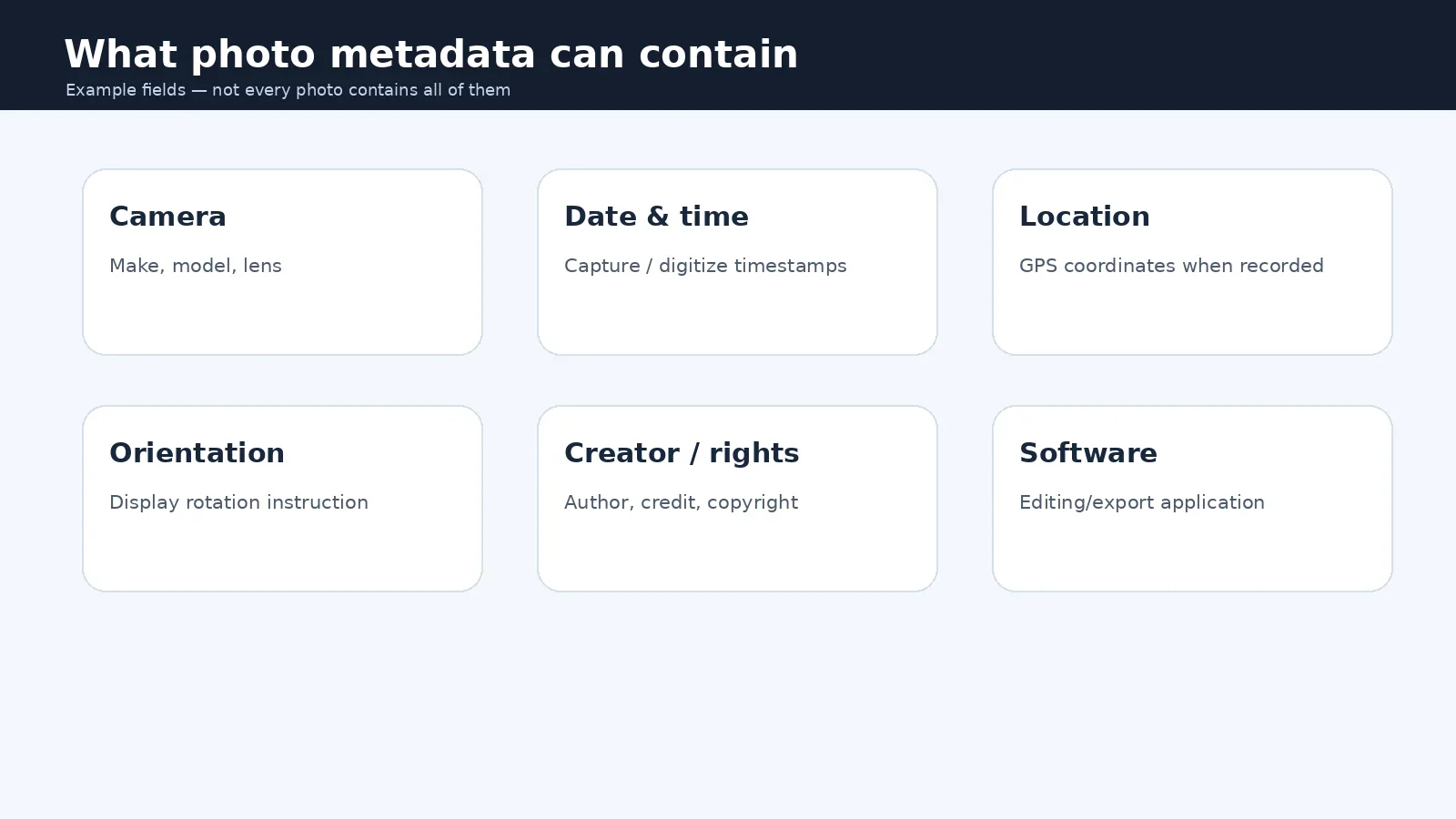
Photo metadata is information stored with—or sometimes alongside—an image. It can describe how the image was captured, who created it, when it was taken, where it was taken, how software edited it, and how color should be interpreted. EXIF is one metadata system, not a synonym for every kind of image metadata.
EXIF vs XMP vs IPTC vs ICC
| Type | Typical role | Privacy note |
|---|---|---|
| EXIF | Camera/capture data such as time, model, exposure, orientation and possible GPS fields | Some fields can be sensitive, but not every file contains them |
| XMP | Extensible descriptive, workflow and editing metadata | Can include creator, description and workflow information |
| IPTC | Editorial description, creator, credit, rights and licensing data | Removing it can also remove useful attribution/copyright information |
| ICC profile | Color interpretation | Primarily a color-management asset, not privacy tracking; deleting it can change color rendering |
EXIF
Camera model, capture settings, orientation and sometimes date or GPS coordinates.
Privacy tip: check location and time fields before sharing.
XMP
Descriptions, creator details, editing information and software workflow metadata.
Privacy tip: some fields may reveal authorship or workflow details.
IPTC
Editorial captions, credits, copyright notices, rights and licensing information.
Important: removing this data can also erase useful attribution.
ICC profile
Color profile information that helps applications display consistent colors.
Important: deleting a color profile may change how colors appear.
Can photos contain your location?
Yes, some photos can contain GPS latitude/longitude and related fields if the camera or app recorded them. But not every photo has GPS. Device settings, camera permissions, export software and sharing workflows all affect what survives.
Location metadata and visible clues are separate. Even after GPS is removed, someone may infer a place from street signs, landmarks, house numbers, school uniforms, business names, vehicle plates or a recognizable landscape.
Download a synthetic GPS example
The sample JPEG contains intentionally fictional GPS fields. The Metadata Viewer identified them, and the Remove Image Metadata tool generated a separate JPEG. A second inspection checked the saved copy.
The browser tool decodes and re-encodes the output. Keep the original when you need original JPEG data, metadata or color-profile behavior.
| Download | Dimensions | GPS EXIF tag |
|---|---|---|
| Original with synthetic GPS | 900 × 600 | Present |
| Cleaned browser output | 900 × 600 | Absent |


Repeat the check on the exact file you share
Open the original in the viewer, clean a copy, then reopen the downloaded copy. If you use a sharing app that makes another copy, inspect the file delivered by that workflow too.
Orientation test
Some viewers honor an orientation tag rather than storing the picture already upright. After making a cleaned copy, open it in the receiving app and check its orientation.
Did metadata removal change image quality?
Re-encoding as JPEG can change pixels. Compare fine detail and color on the cleaned copy if fidelity matters. Keep the original for further editing.
JPG vs PNG vs WebP vs HEIC metadata behavior
Formats can store metadata differently. Read the supported inputs and output format in the selected tool, then check the downloaded file for the specific fields that matter.
How to inspect metadata before sharing
Inspect the actual file rather than relying on the filename or the properties shown in a photo library. Embedded and app-estimated locations can be separate.
What does MAGODUCK remove?
MAGODUCK creates a new image from the decoded pixels. The JPEG example above shows the exact tested before-and-after files. Use the viewer to inspect your own output.
How to share an iPhone photo without location
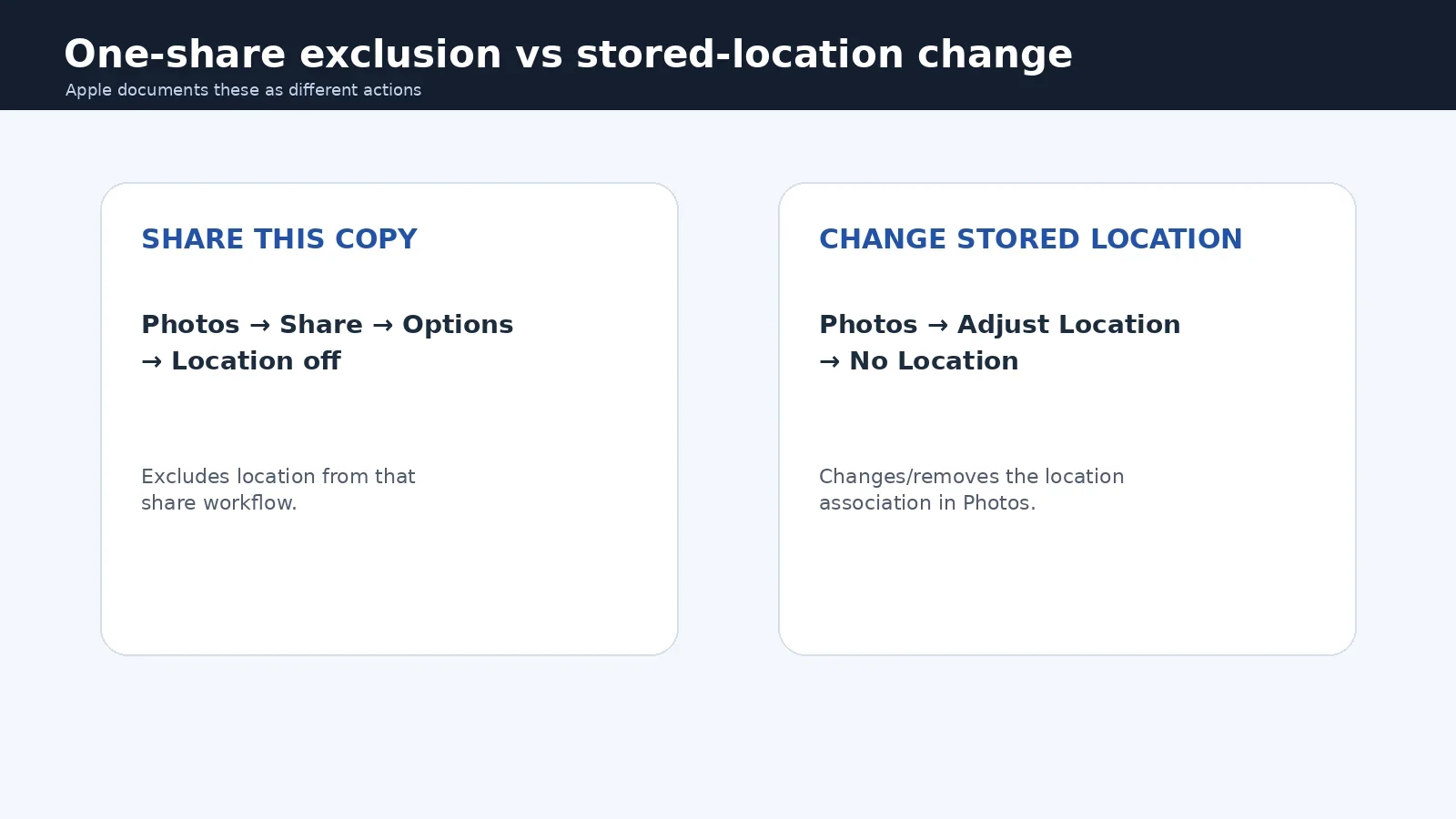
Apple’s Personal Safety guide documents a per-share control: select the photo in Photos, tap Share → Options, then turn Location off. Menus can differ by iOS version; use the guide for your device and inspect the shared copy. Apple describes this as adjusting the information shared with that photo or video. The same Options screen also includes All Photos Data for supported AirDrop/iCloud-link workflows; when enabled, Apple says the original file can be shared with edit history and metadata. That is not the setting to enable when your goal is metadata minimization.
How to remove the stored location in Apple Photos
Apple’s current Personal Safety guidance documents Adjust Location → No Location for removing location metadata associated with a photo in Photos. This is different from turning Location off for one share. Apple also documents disabling Camera access to Location Services if you do not want new camera captures to collect location metadata.
Google Photos / Android location nuance
Google Photos makes an important distinction between camera-added location and locations Google Photos estimated or you manually added. Google’s current help says camera-added location cannot be changed or removed in Google Photos, while estimated/manually added locations can be edited. It also warns that when you download a photo and share it outside Google Photos, the original location saved by the device can remain even if you changed location information inside Google Photos.
Android camera settings vary by manufacturer, so this article does not invent one universal Samsung/Pixel/Xiaomi menu path. If you want to stop future camera location capture, check the current camera/location permissions for your specific device.
Does Instagram, Facebook or WhatsApp strip metadata?
Do not make a privacy decision by assuming that a third-party platform will always sanitize every file in every workflow. Platforms may generate stripped display copies, but uploads, originals, document/file sharing, backups or later downloads can follow different paths. In this release we did not verify a stable first-party guarantee across Instagram, Facebook and WhatsApp workflows, so the article deliberately classifies platform stripping as not relied upon. If location matters, prepare and verify the file before uploading.
Can you just take a screenshot?
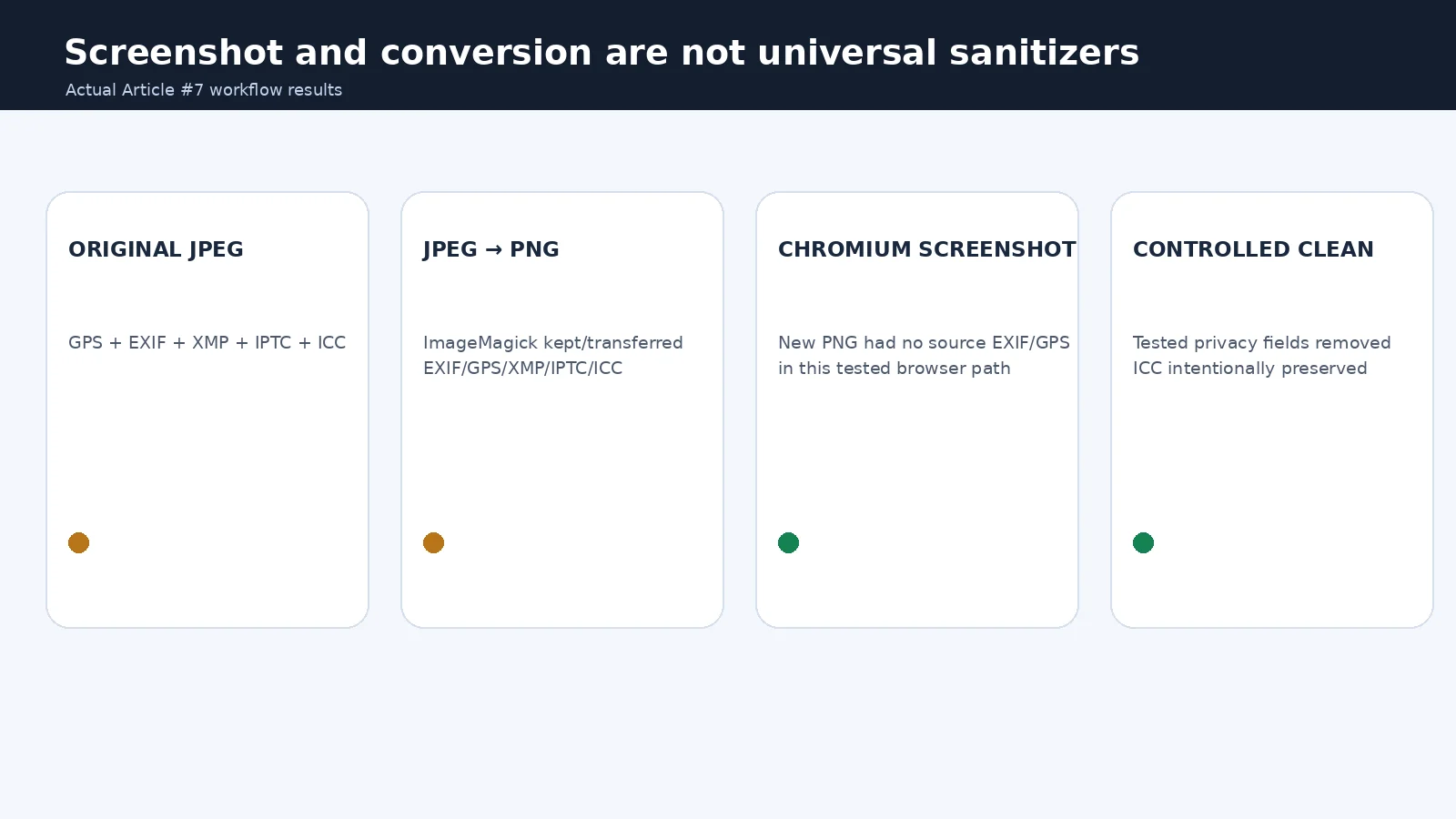
A screenshot creates a new image, so the source photo’s EXIF/GPS block is not automatically carried over byte-for-byte. But a screenshot is not a universal metadata sanitizer: the new screenshot can have its own metadata, and it still contains every visible clue captured in the pixels. We tested a real Chromium screenshot of our controlled image in the Article #7 QA harness and inspected that new PNG separately.
Does converting JPG to PNG remove metadata?
Not reliably. We converted the controlled metadata-rich JPEG to PNG through ImageMagick without an explicit strip instruction and inspected the result. Conversion software can preserve, translate or discard different blocks. Format conversion is not a privacy guarantee. The correct test is the output file you will share.
What metadata might you want to keep?
Privacy is not the only goal. Photographers and publishers may intentionally preserve creator, credit, copyright and licensing metadata. An ICC profile may be important for color. Capture data can be useful for archives and editing. A sensible workflow is often to keep the original/master intact and make a sharing copy with only the fields you want.
Visible clues metadata removal cannot hide
Embedded metadata and visible information are different. Removing GPS will not blur a street sign, hide a house number, remove a school logo, erase a reflection, or conceal a unique landmark. Crop or edit visible clues separately when needed.
Practical pre-share privacy checklist
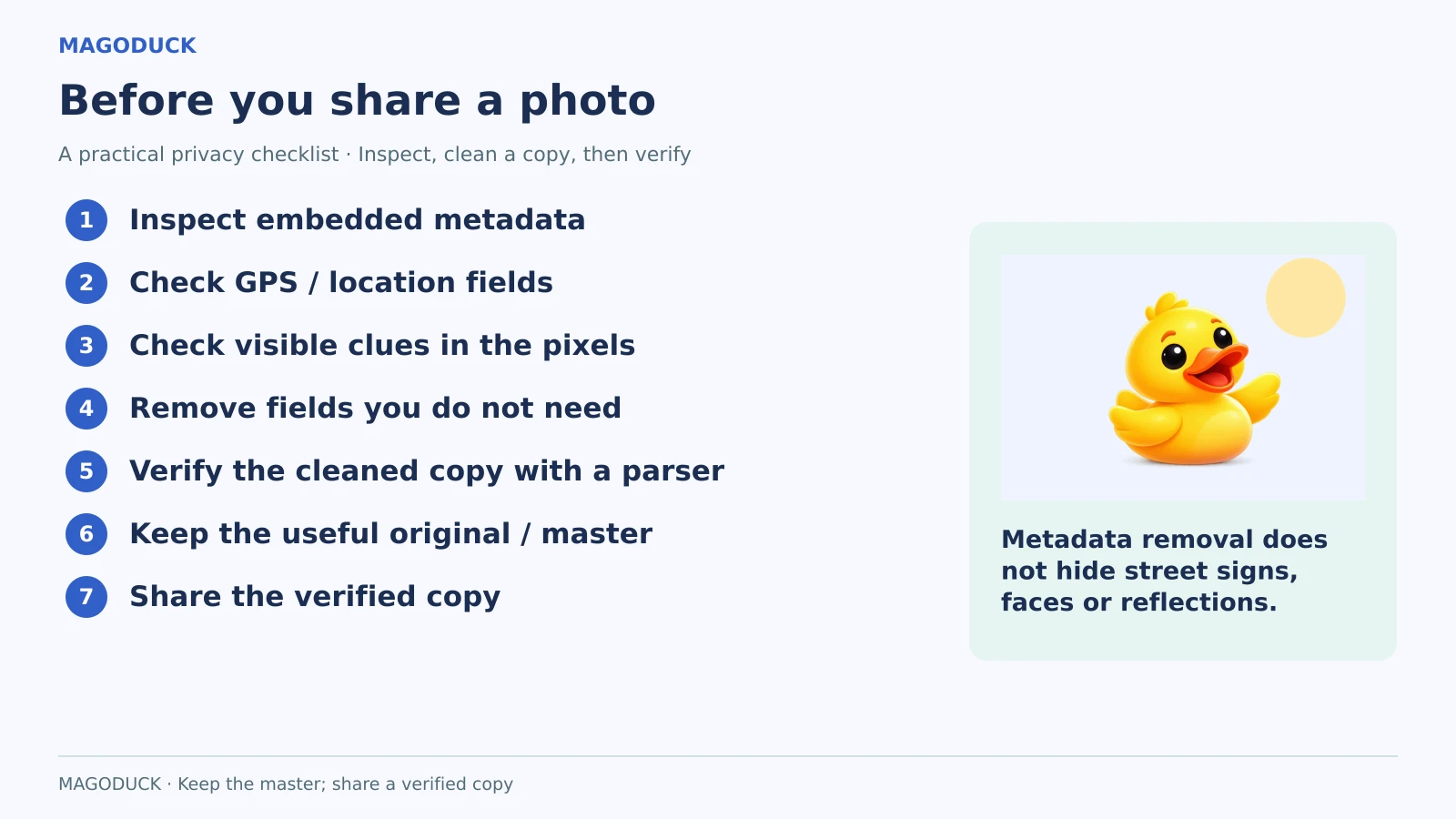
- Inspect embedded metadata.
- Check GPS/location fields.
- Check visible clues inside the pixels.
- Remove fields you do not need.
- Verify the cleaned copy with a metadata-aware parser.
- Keep the original/master if its metadata is useful.
- Share the verified copy.
Common mistakes
- Assuming every photo contains GPS.
- Calling all image metadata “EXIF.”
- Deleting ICC/copyright information without deciding whether it is useful.
- Stripping Orientation without normalizing an orientation-dependent JPEG.
- Assuming a screenshot or format conversion is automatically clean.
- Trusting a platform to strip metadata without verifying the exact workflow.
- Looking only at raw file hashes when the real question is whether visible pixels changed.
- Forgetting visible privacy clues in the image itself.
- Deleting the only original before checking the cleaned output.
Methodology
We ran the synthetic JPEG through the MAGODUCK viewer and remover in local WordPress. We inspected the downloaded EXIF with Pillow and confirmed the dimensions. The tool measurements record the sizes and hashes.
For reference, the earlier reported tables (CSV) record the previous article figures. The original inputs for those figures are unavailable. The examples above use the downloadable files shown here.
Sources
- Apple Personal Safety guide to photo location metadata
- Google Photos guidance on camera and estimated locations
- ExifTool FAQ on metadata and color profiles
Short FAQ
Can someone tell where I took a photo after I remove GPS tags?
Yes, if the photo shows a recognizable place, sign or address. Inspect the visible details and remaining metadata in the exact copy you will share.
What is photo metadata?
Information stored with or associated with a photo, such as camera/capture details, timestamps, possible GPS, creator/rights fields, editing information and color profiles.
Does every photo contain GPS?
No. GPS appears only when a device/workflow records and preserves it.
Does removing metadata reduce image quality?
Not necessarily. A JPEG can sometimes have metadata removed without recompressing its image scan data, but some workflows decode/re-encode and can change pixels. Orientation handling is a common reason a re-encode may be needed.
How do I remove location before sharing an iPhone photo?
Apple’s Personal Safety guide documents Photos → Share → Options → Location off for that share; menu details can vary with iOS version.
Does Google Photos remove camera GPS from the original?
Google says camera-added location cannot be edited/removed in Google Photos, and downloaded/outside-shared copies can retain the original device-saved location.
Does Instagram or WhatsApp always strip metadata?
Do not rely on a universal guarantee. Prepare and verify the file before upload if metadata matters to you.
Does taking a screenshot remove metadata?
It creates a new image, but the new file can have its own metadata and visible clues remain. Verify the screenshot itself.
What metadata should photographers keep?
Potentially creator, credit, copyright/licensing and color-profile information, depending on the workflow. Keep the master if those fields matter.
Editorial transparency: This guide was drafted with AI assistance. The included GPS coordinates are intentionally synthetic, and the bundled cleaned JPEG supports that specific demonstration. Do not assume metadata cleaning makes a photograph anonymous: inspect the exact output, and remember that visible clues remain in the pixels.
The practical rule
Inspect first, clean a copy, then verify that copy. Remove privacy-sensitive embedded fields you do not need, preserve useful rights/color information when appropriate, and remember that visible pixels can reveal location or identity clues even after metadata is gone.